EN
Frequently Asked Questions
Function :
Scan QR Code
Display QRCode
Octopus
Credit Card
- Step 1 -
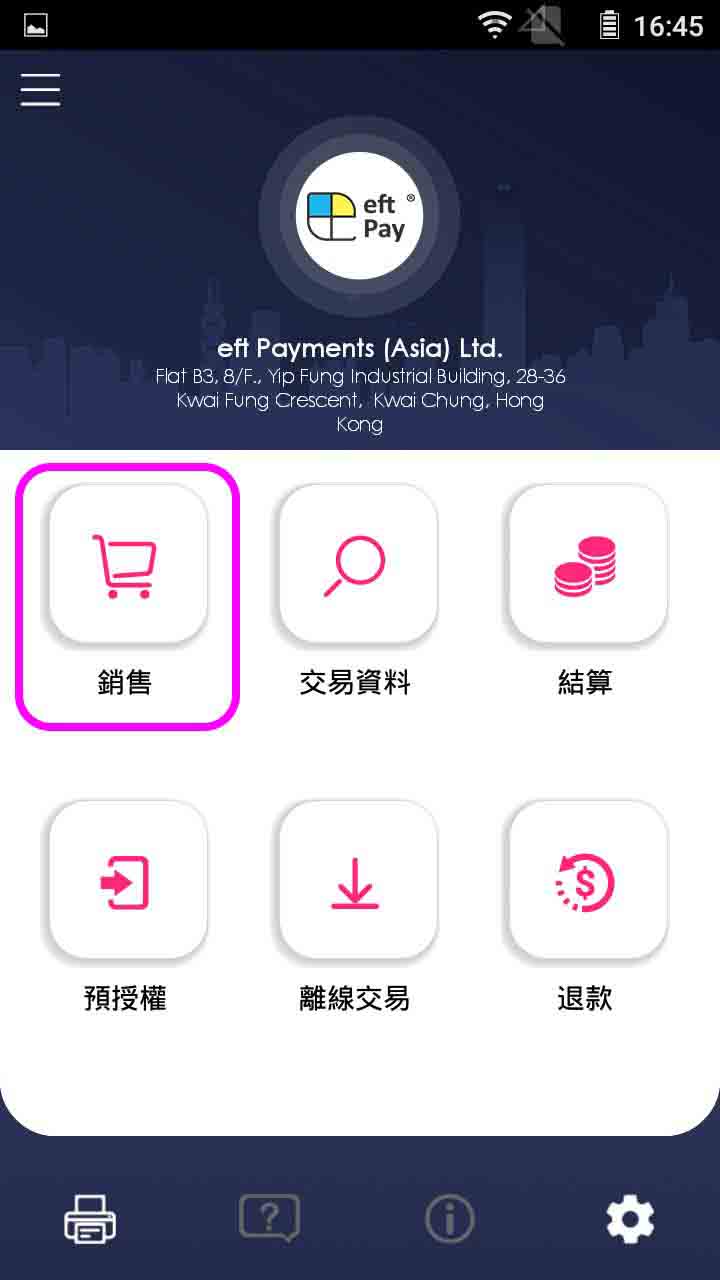
Press [Sale] on menu
- Step 2 -
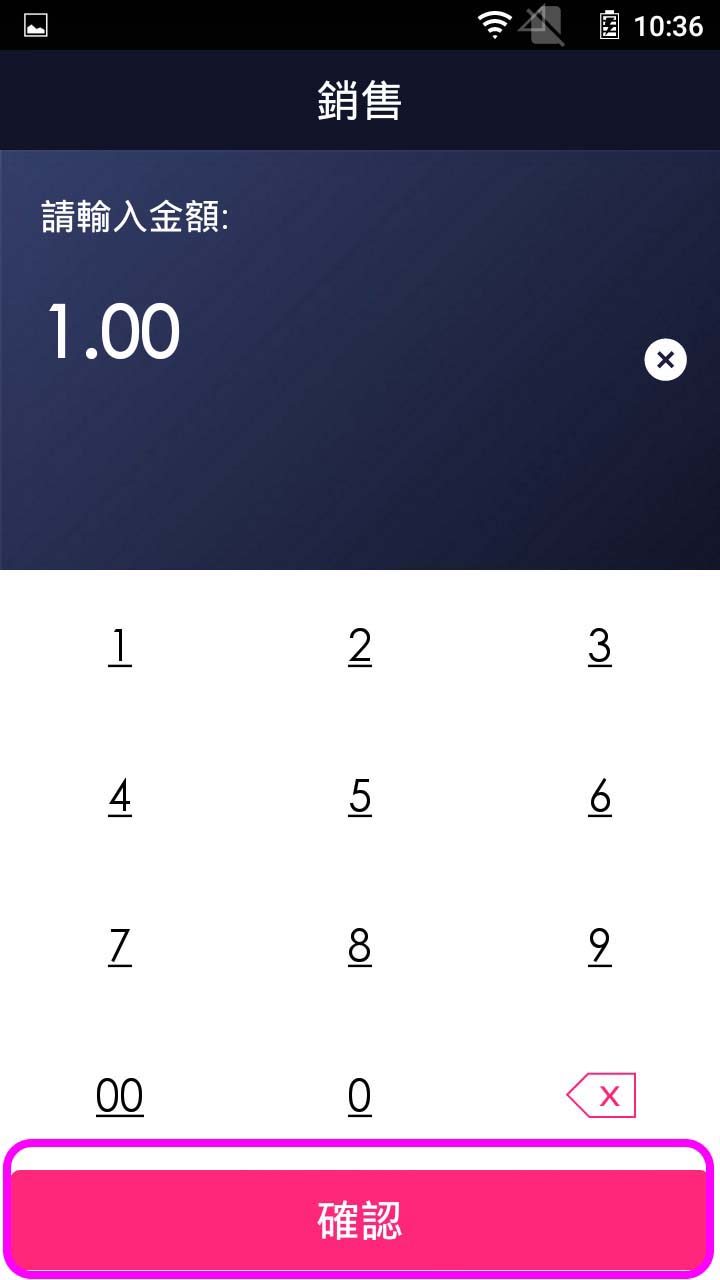
Enter sale amount
- Step 3 -
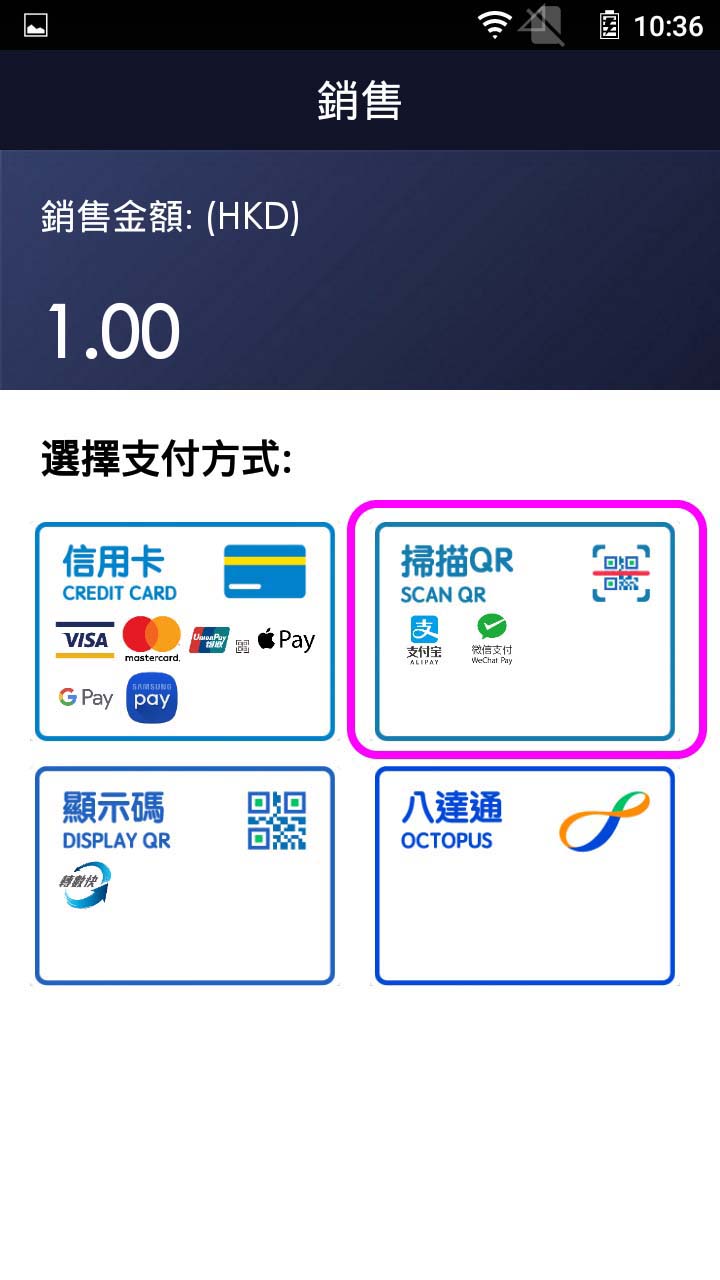
Press button to select QR code payment
- Step 4 -
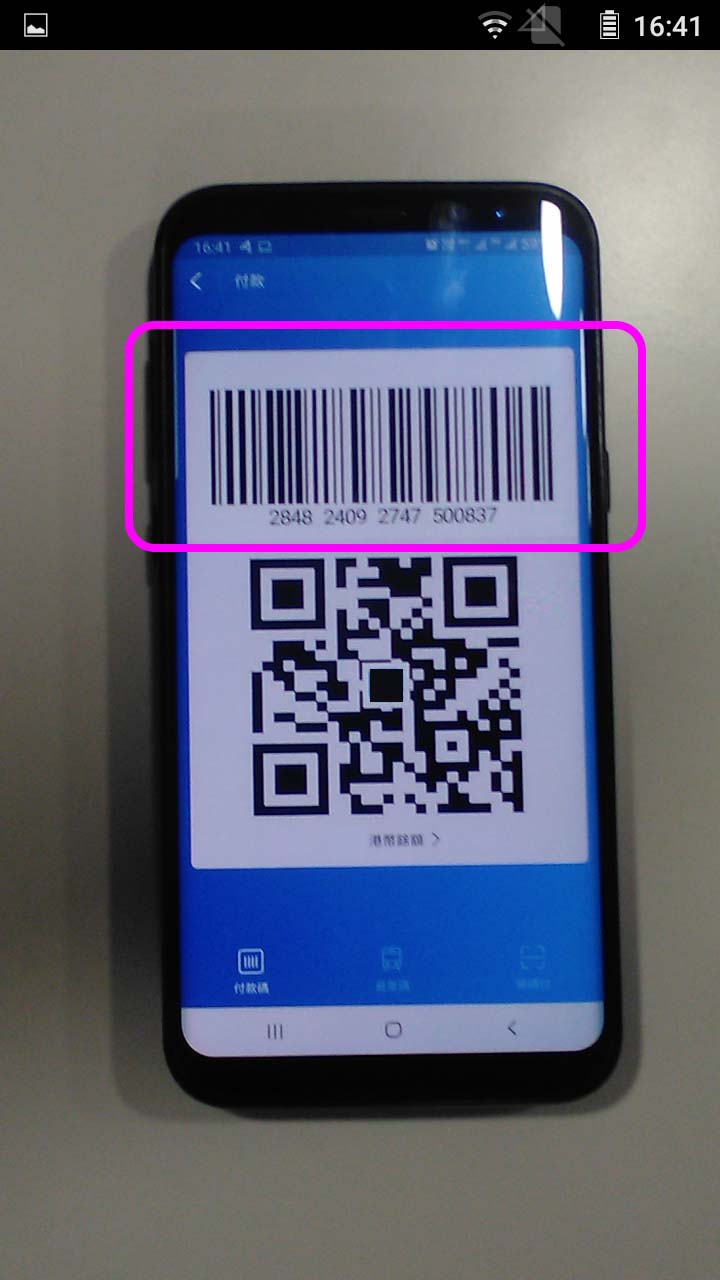
Scan QR code from client mobile
- Step 5 -
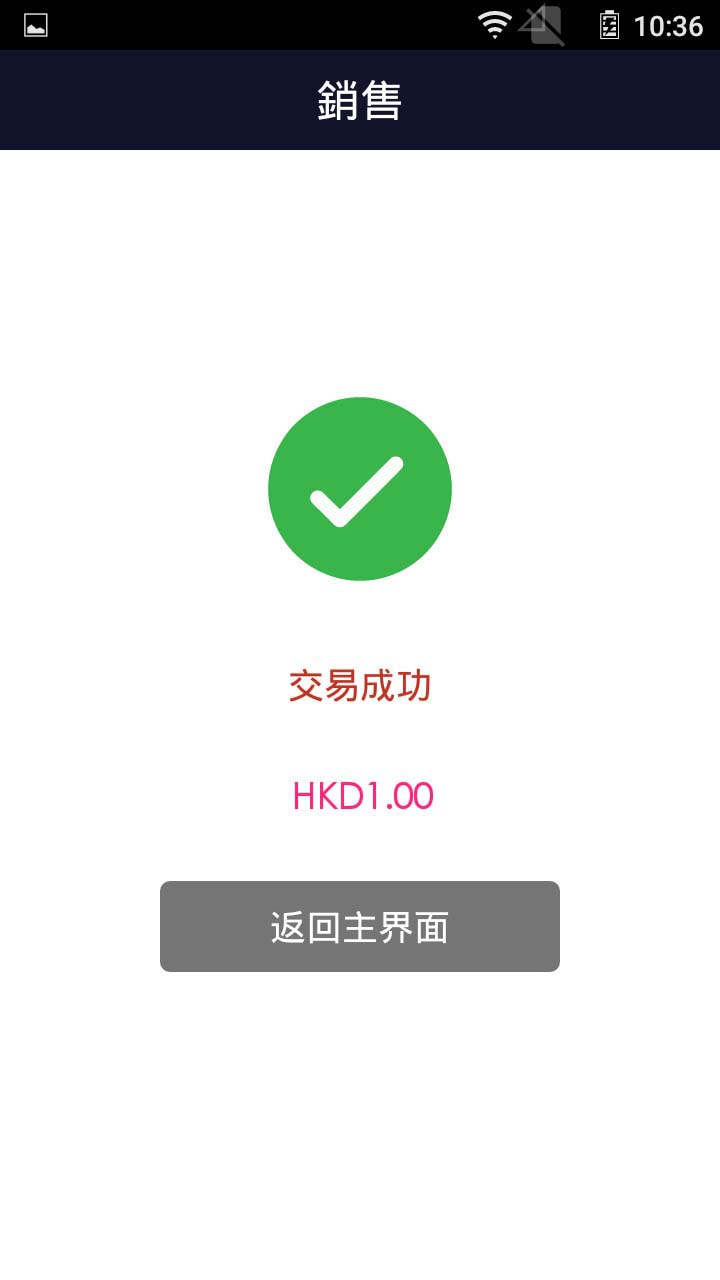
Transaction is completed, and terminal prints out receipt
- Step 1 -
Press [Sale] on menu
- Step 2 -
Enter sale amount
- Step 3 -
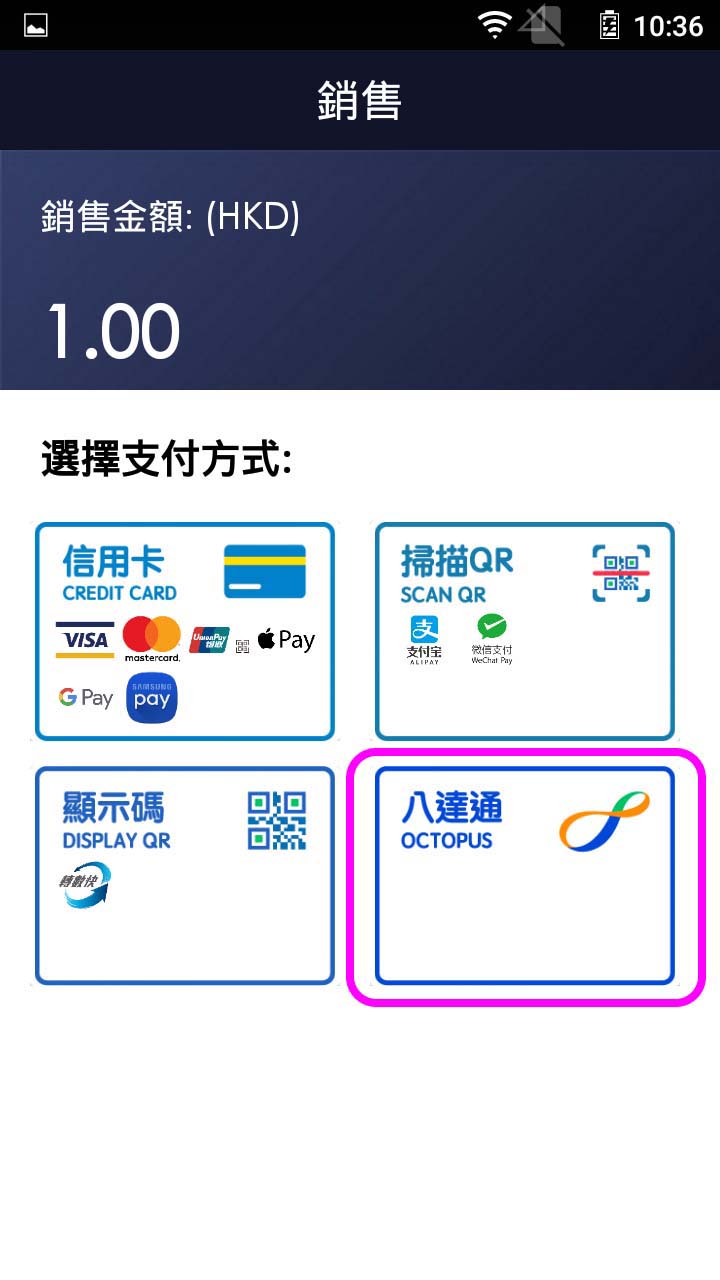
Press button to select Octopus payment
- Step 4 -
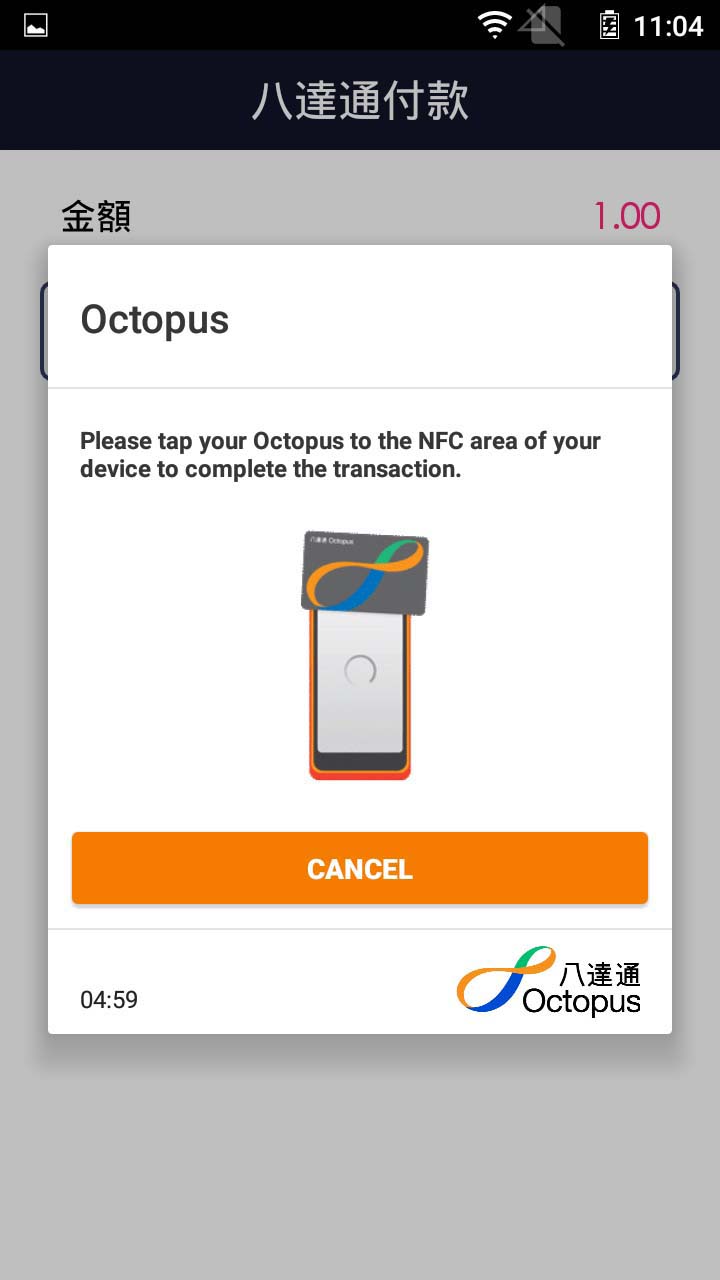
Tap Octopus card on detection area
- Step 5 -
Transaction is completed, and terminal prints out receipt
- Step 1 -
Press [Sale] on menu
- Step 2 -
Enter sale amount
- Step 3 -
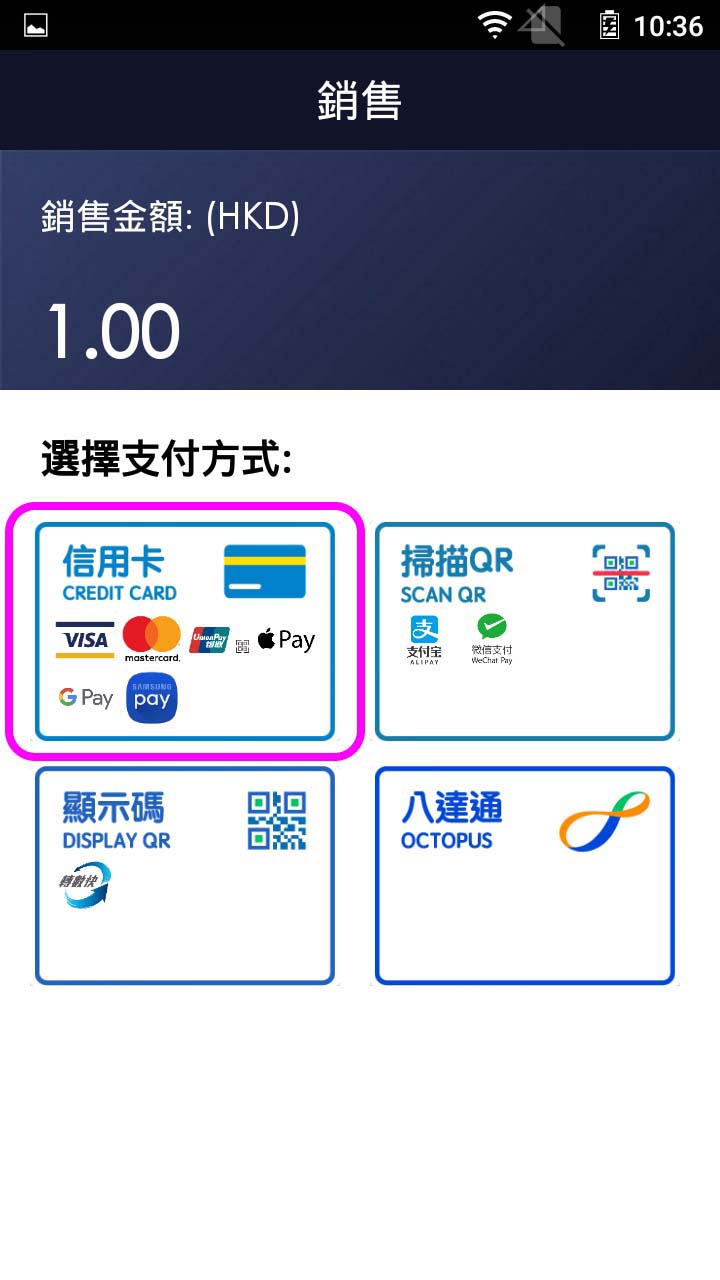
Press button to select credit card payment
- Step 4 -
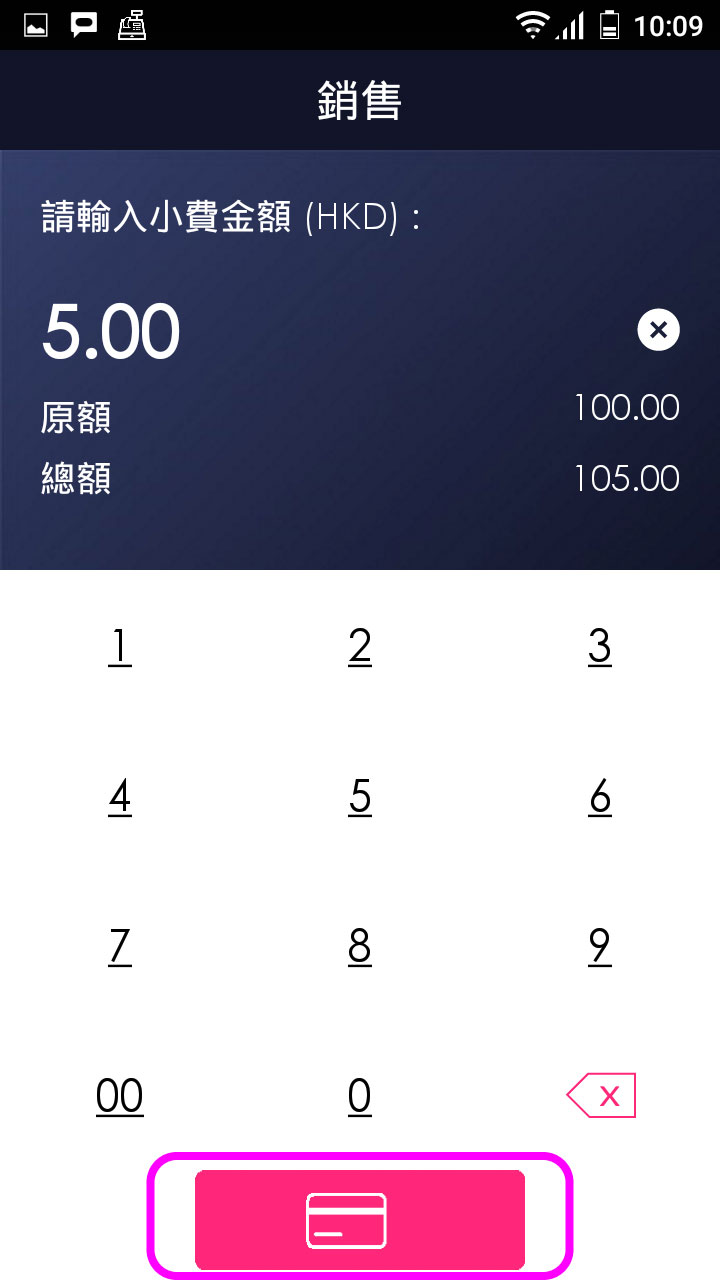
Enter tips amount (If Yes)
- Step 5 -
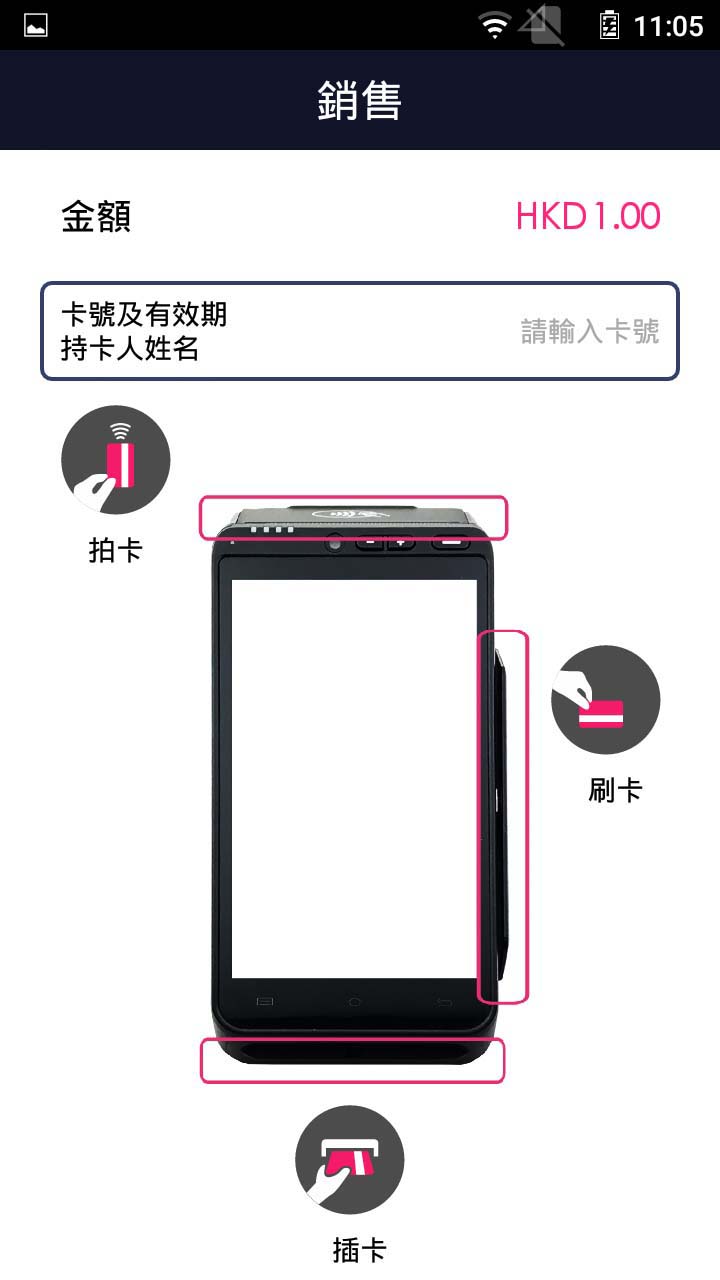
Insert/Tap/Swipe card/Tap mobile
- Step 6 -
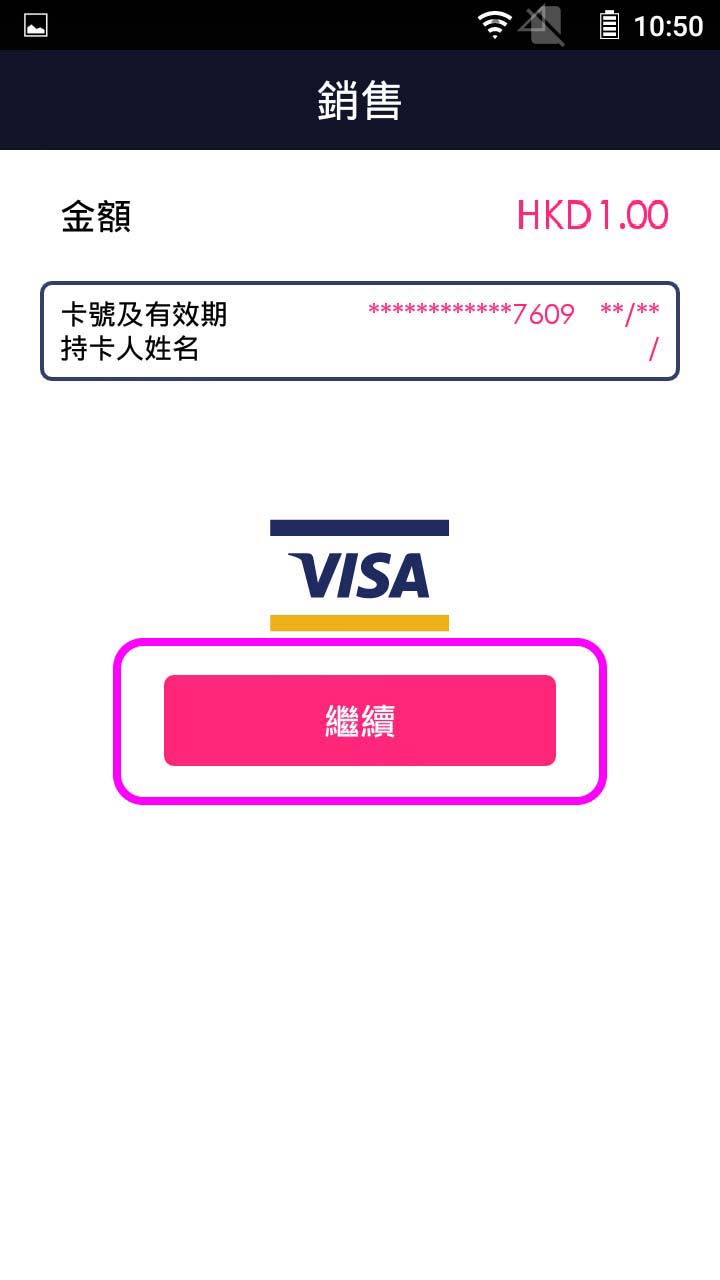
Press [Continue] to proceed (If necessary)
- Step 7 -
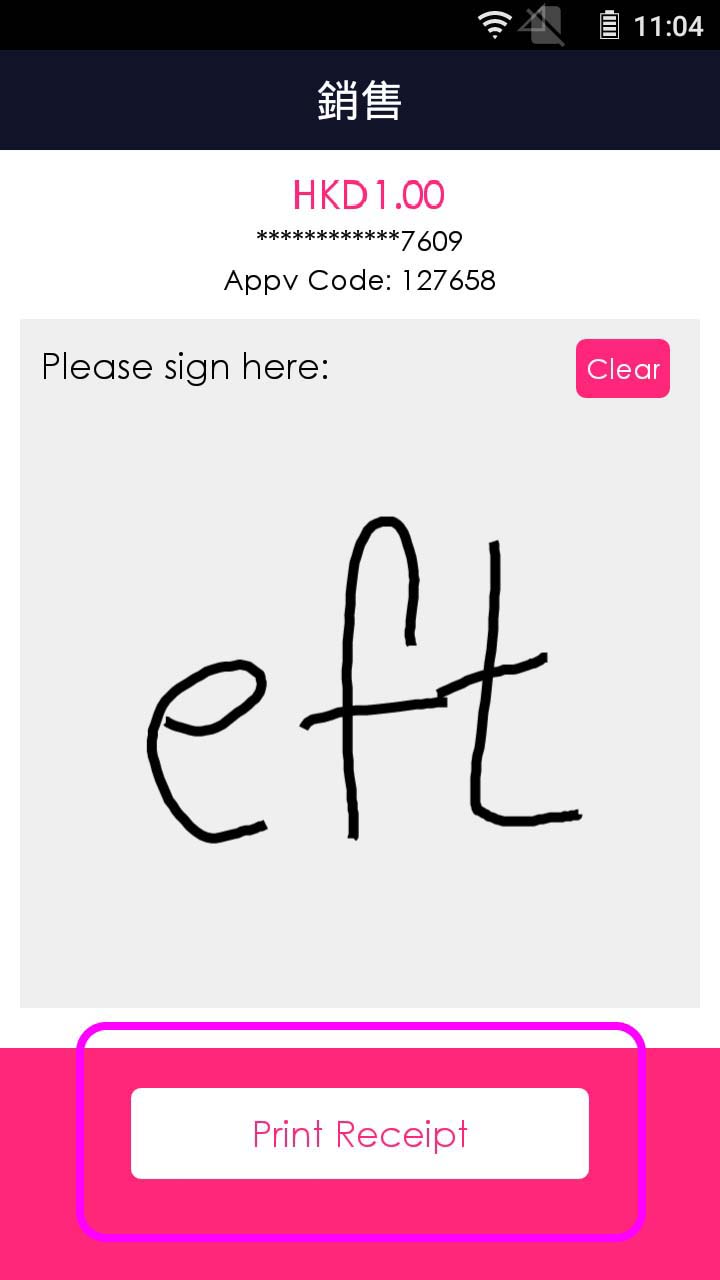
Customer signs, and press [Print Receipt] (If necessary)
- Step 8 -
Transaction is completed, and terminal prints out receipt
- Step 1 -
Press [Sale] on menu
- Step 2 -
Enter sale amount
- Step 3 -
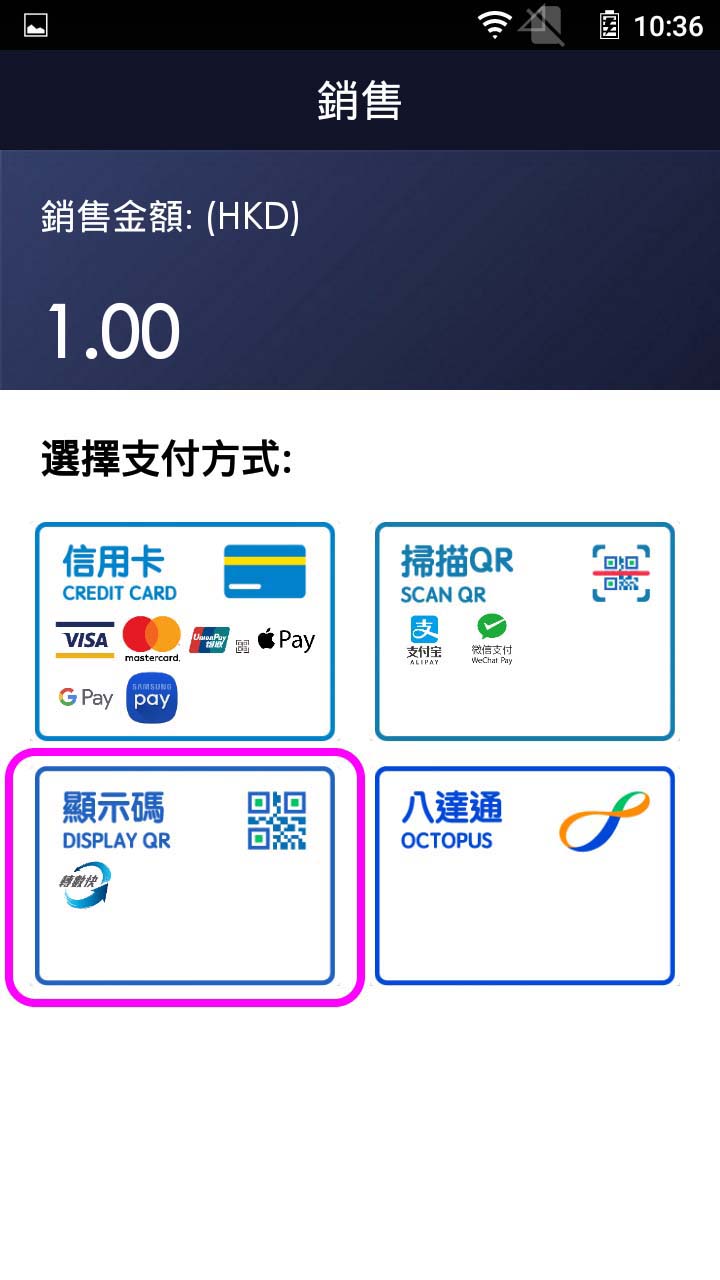
Press button to display QR code
- Step 4 -
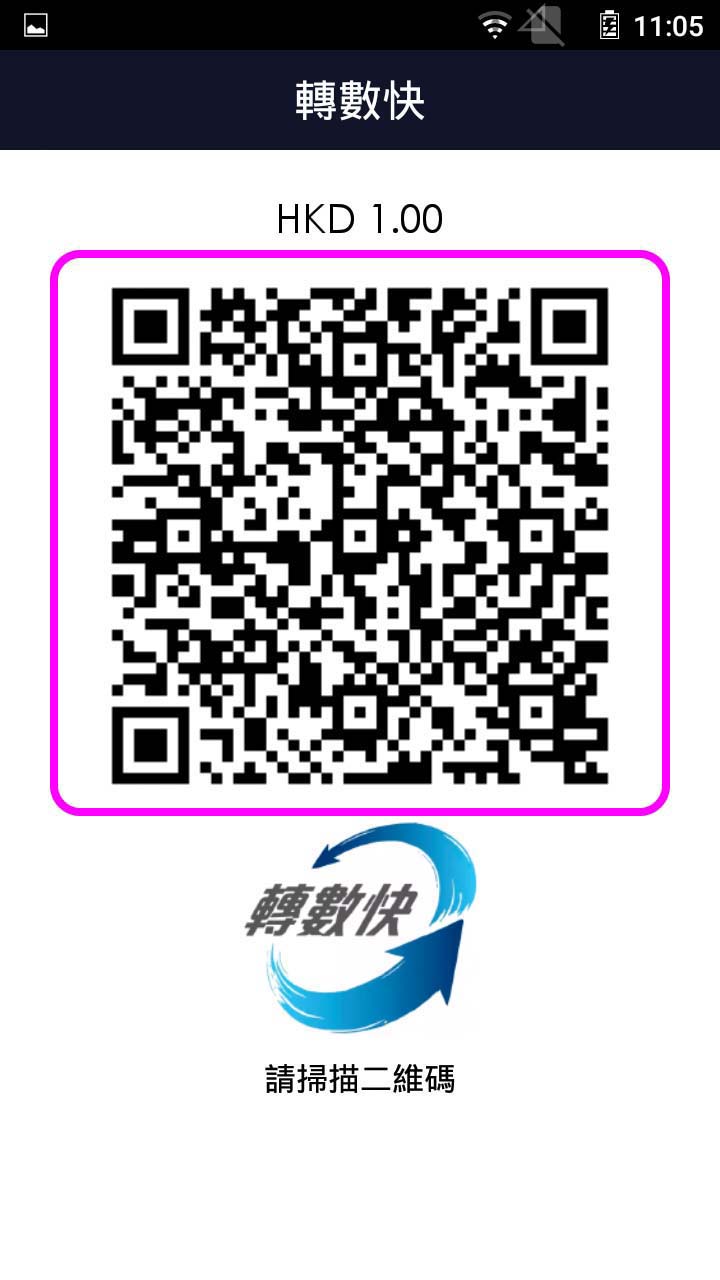
Client scans QR code and confirm payment
- Step 5 -
Transaction is completed, and terminal prints out receipt
Void
- Step 1 -
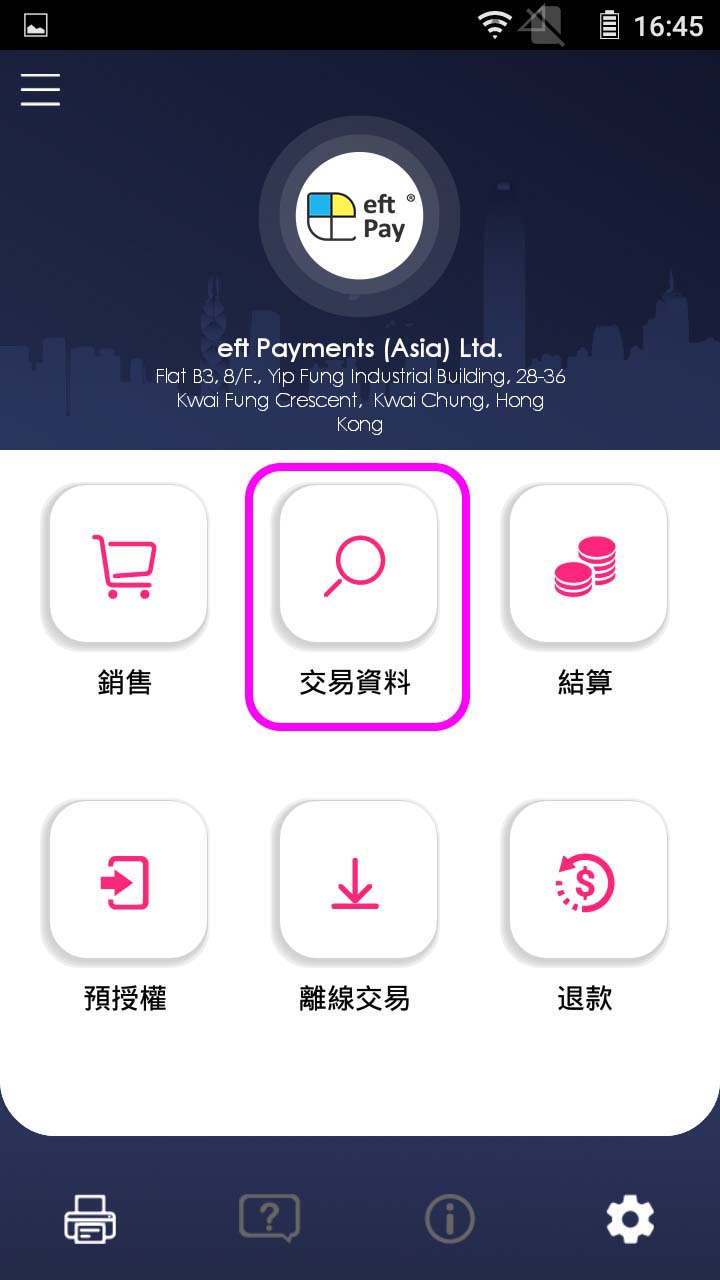
Press [Review] on menu
- Step 2 -
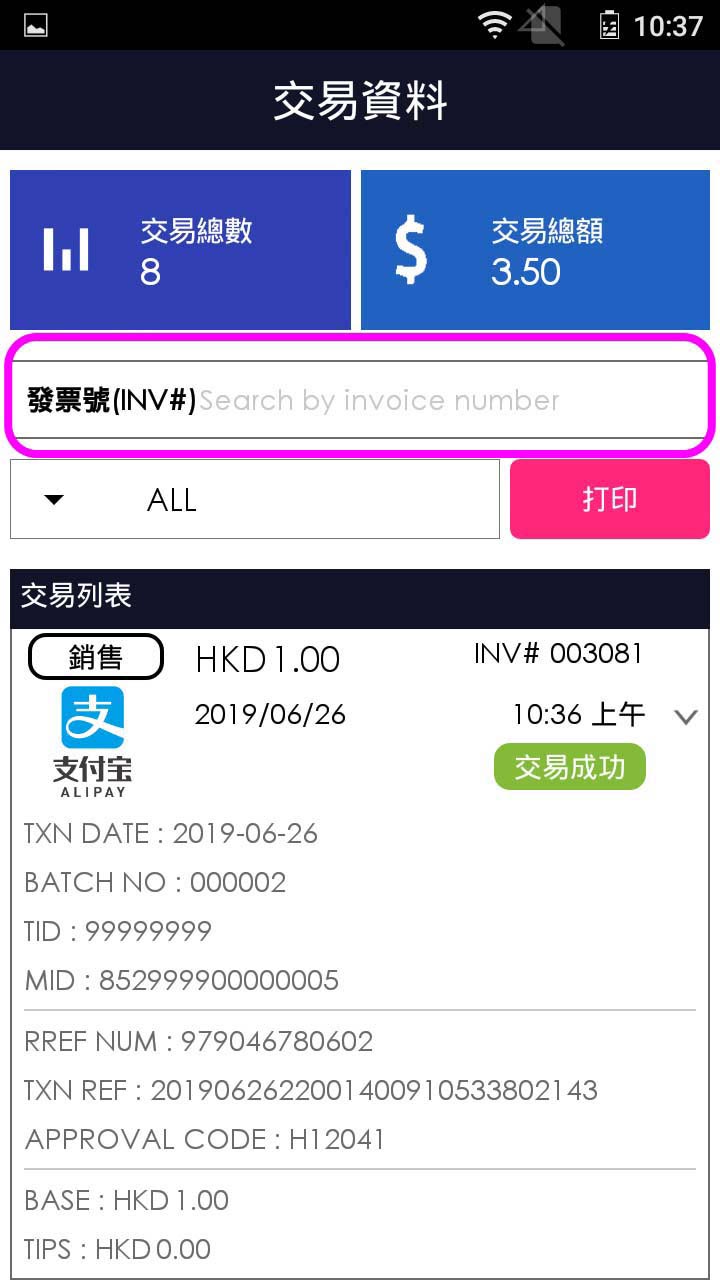
Enter invoice number to search for transaction record
- Step 3 -
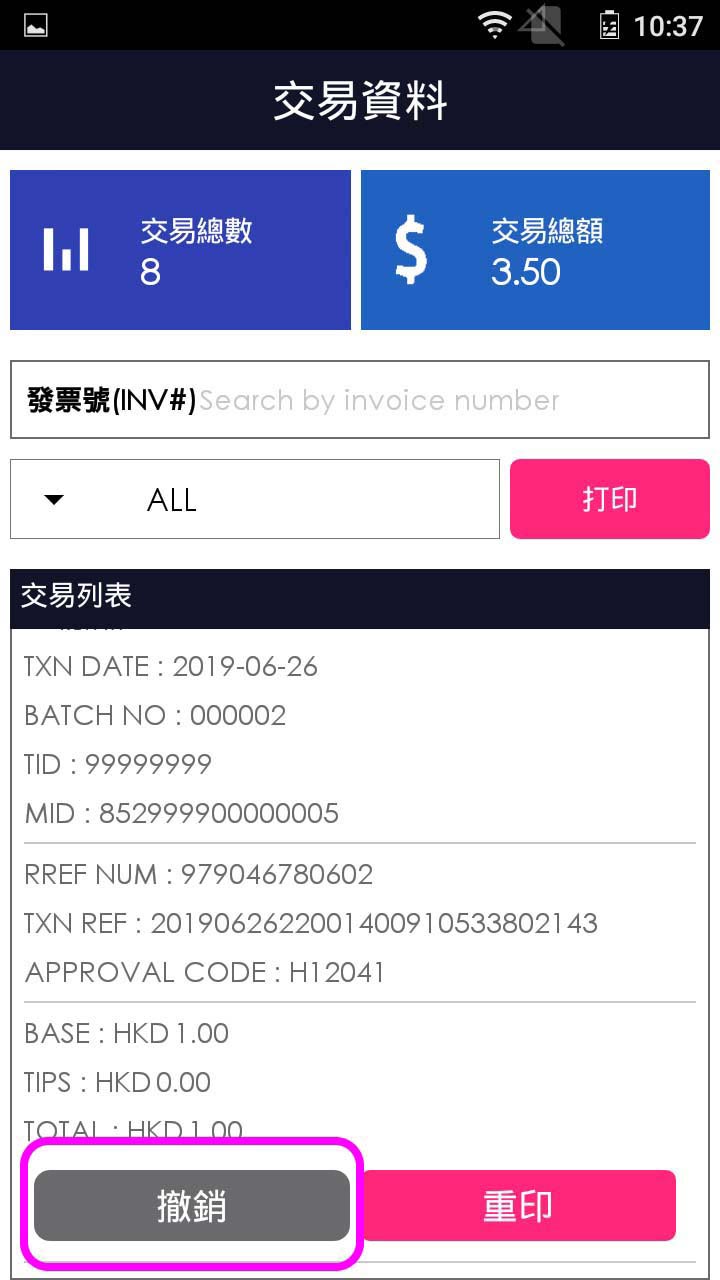
Select transaction record, and press [Void]
- Step 4 -
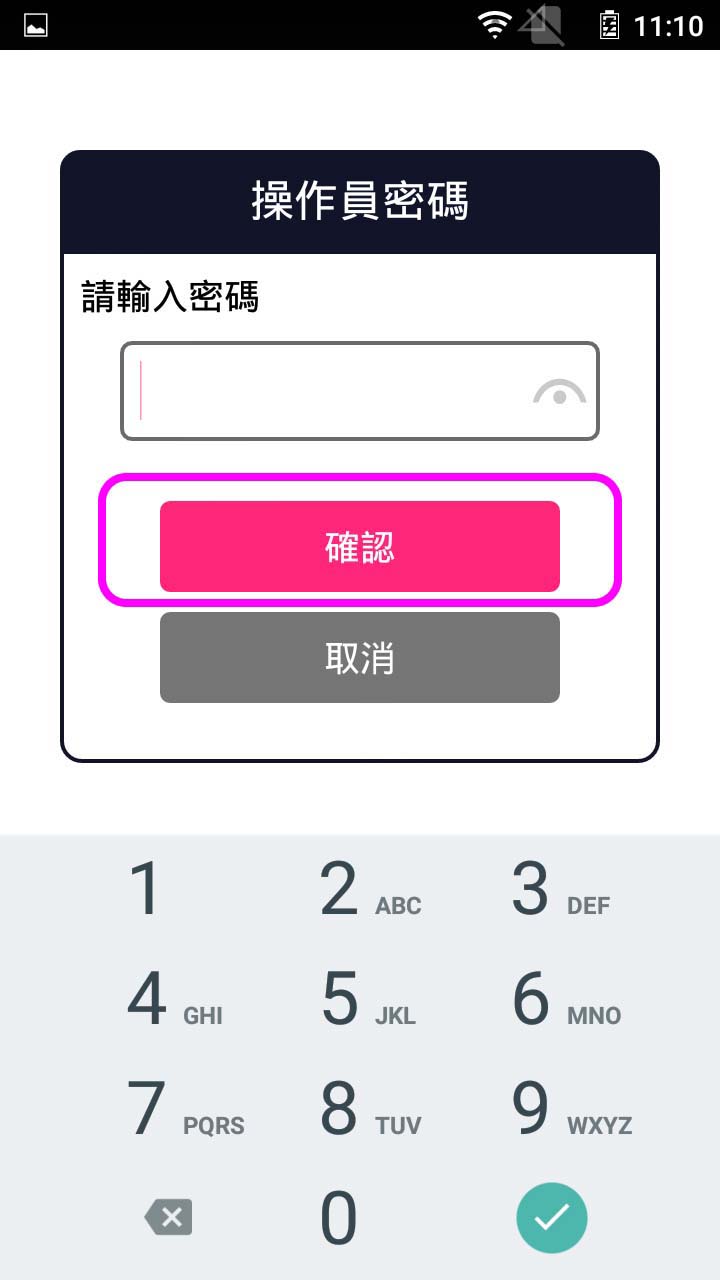
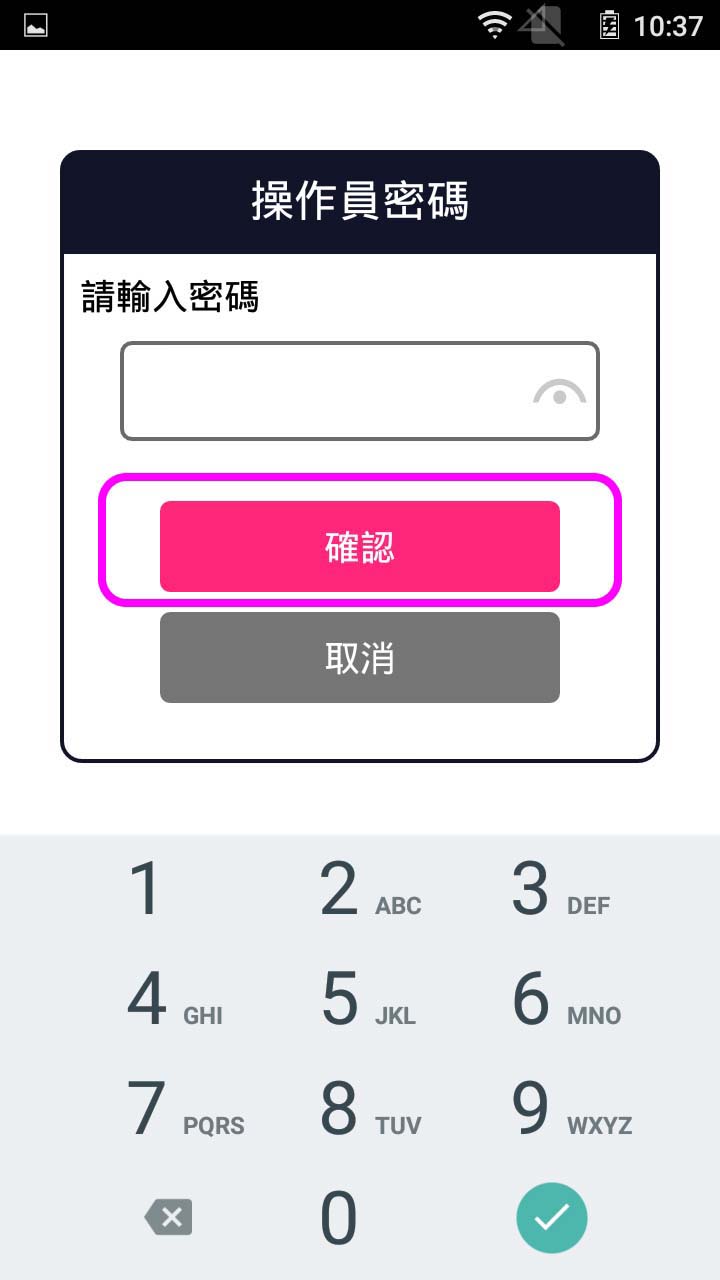
Enter operator password, and press [Confirm]
- Step 5 -
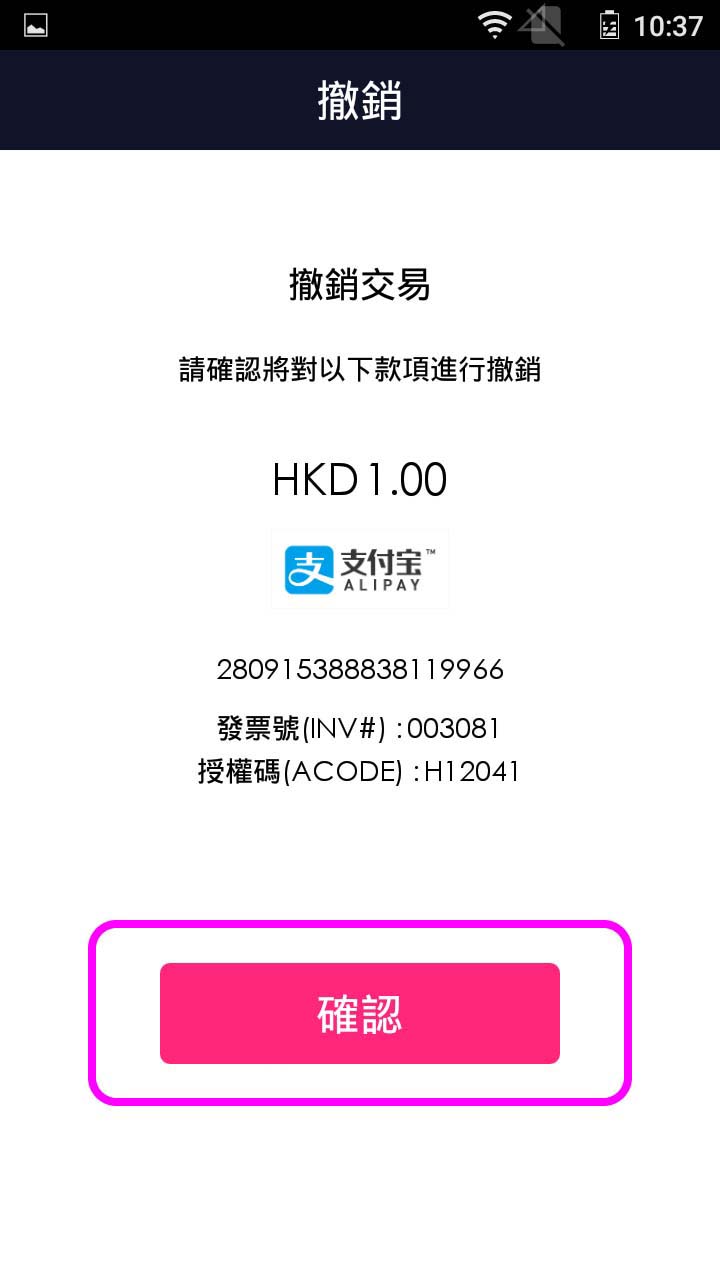
Verify the transaction detail, and press [Confirm]
- Step 6 -
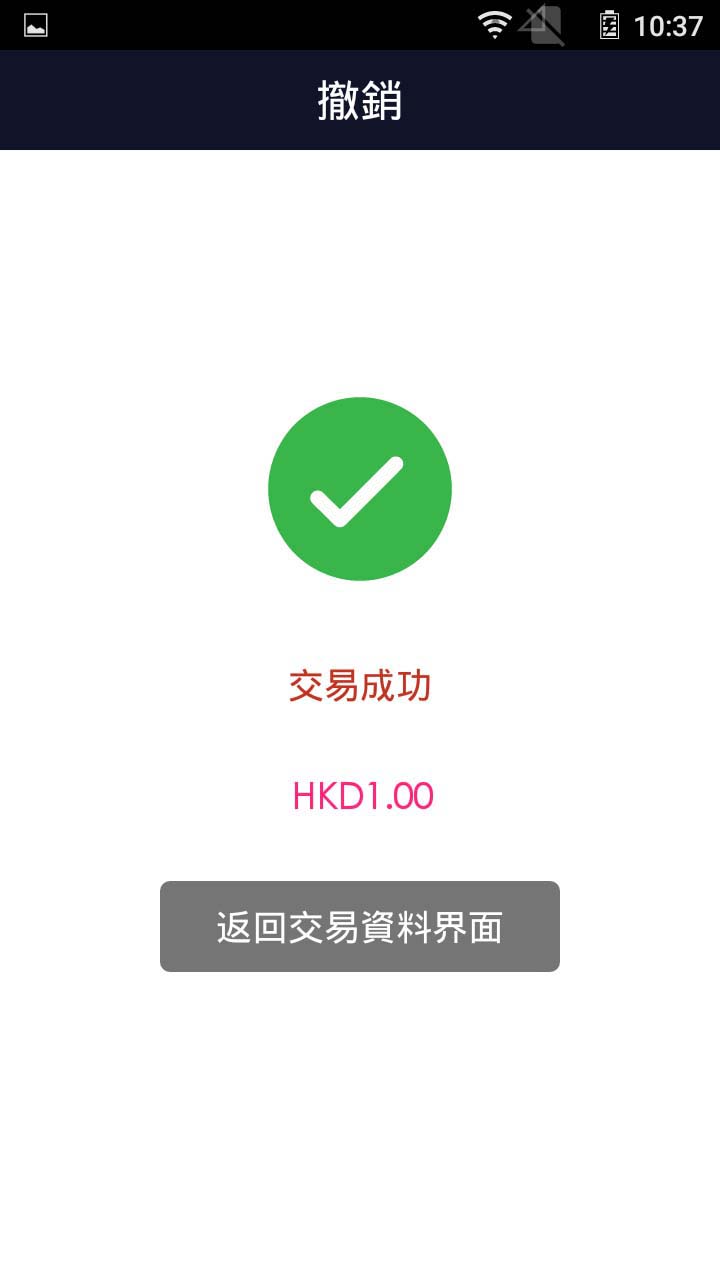
Transaction completed, terminal prints out receipt
Scan QR Code
Manual Entry – QR Code
Manual Entry – Credit Card
- Step 1 -
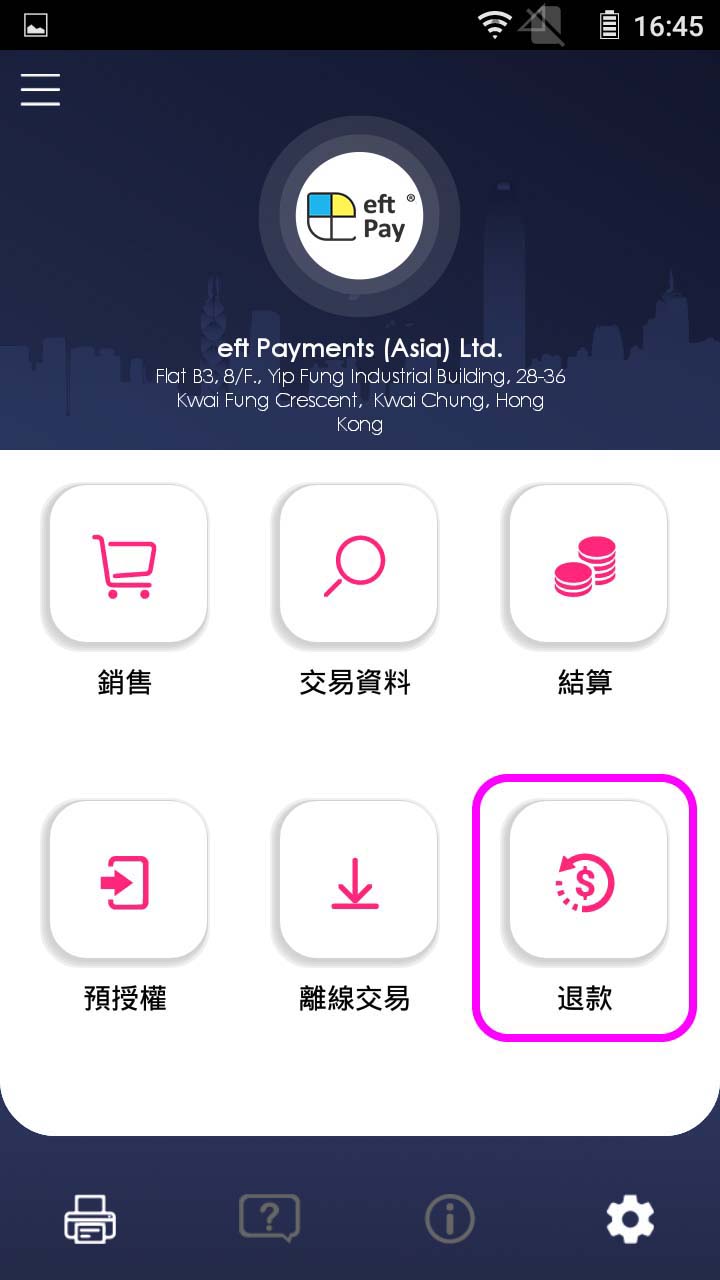
Press [Refund] on menu
- Step 2 -
Enter operator password, and press [Confirm]
- Step 3 -
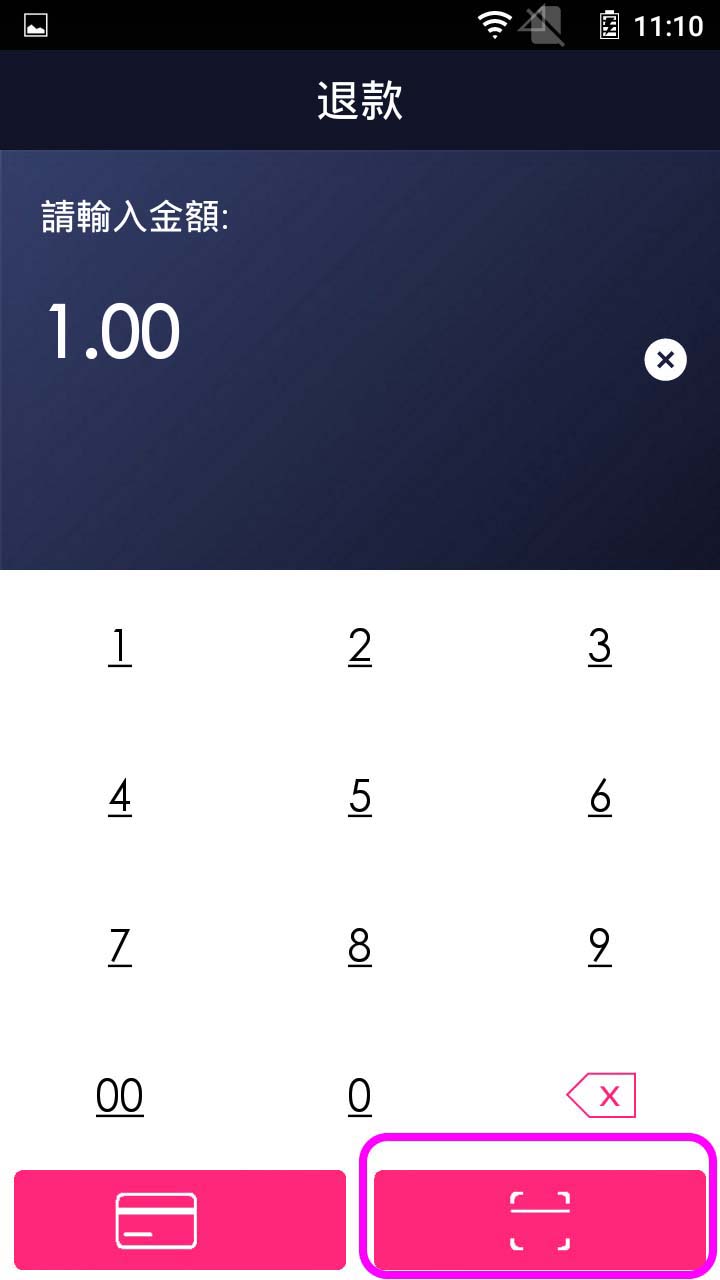
Enter amount, and select [scan QR Code] button
- Step 4 -
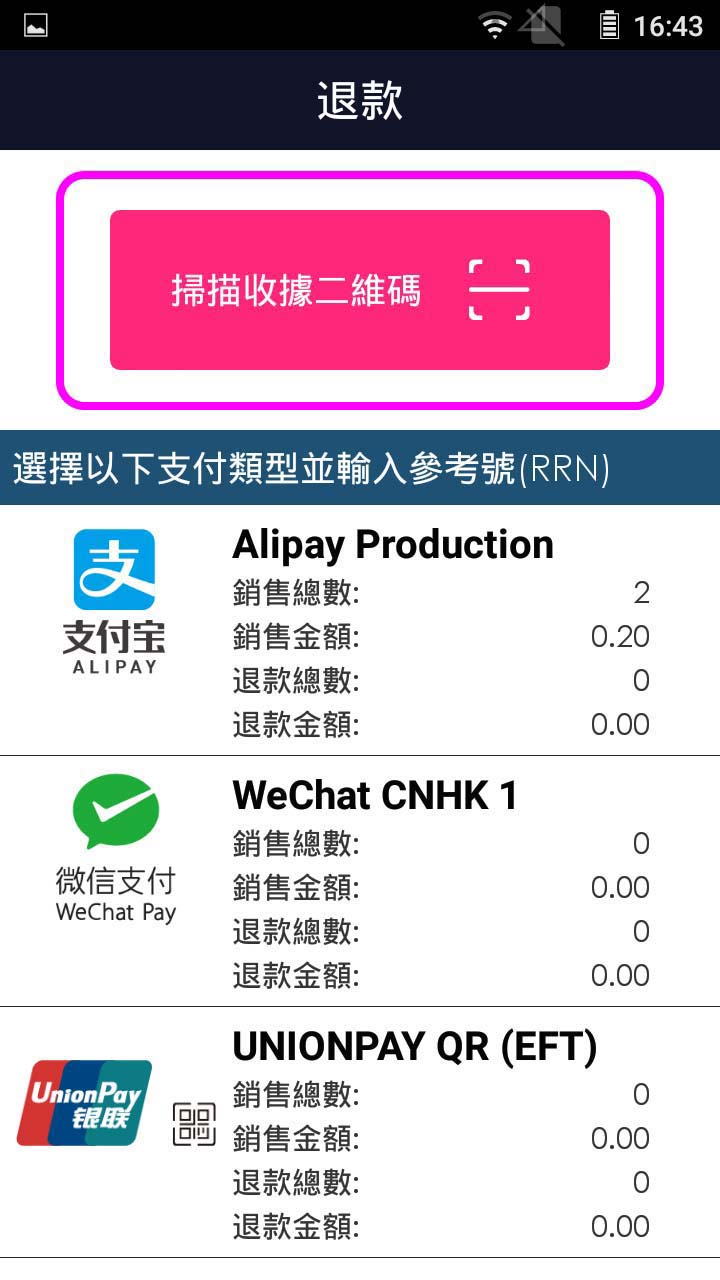
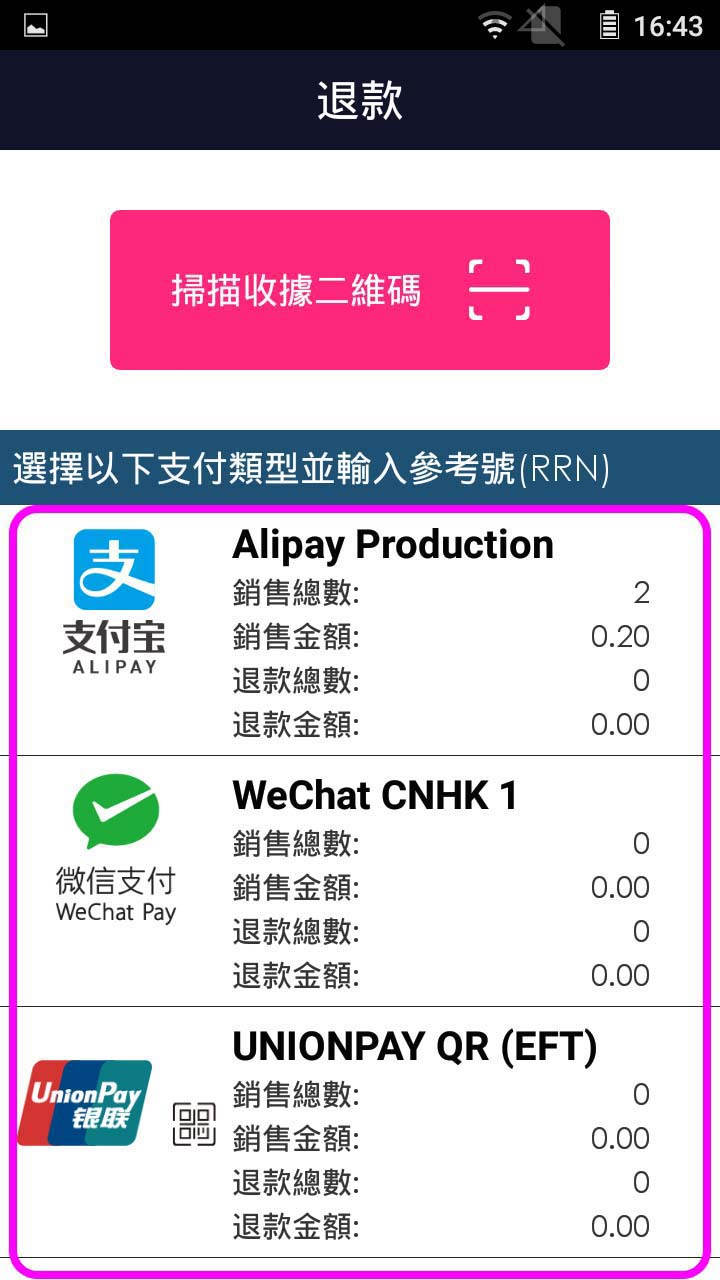
Press [Scan QR code]
- Step 5 -
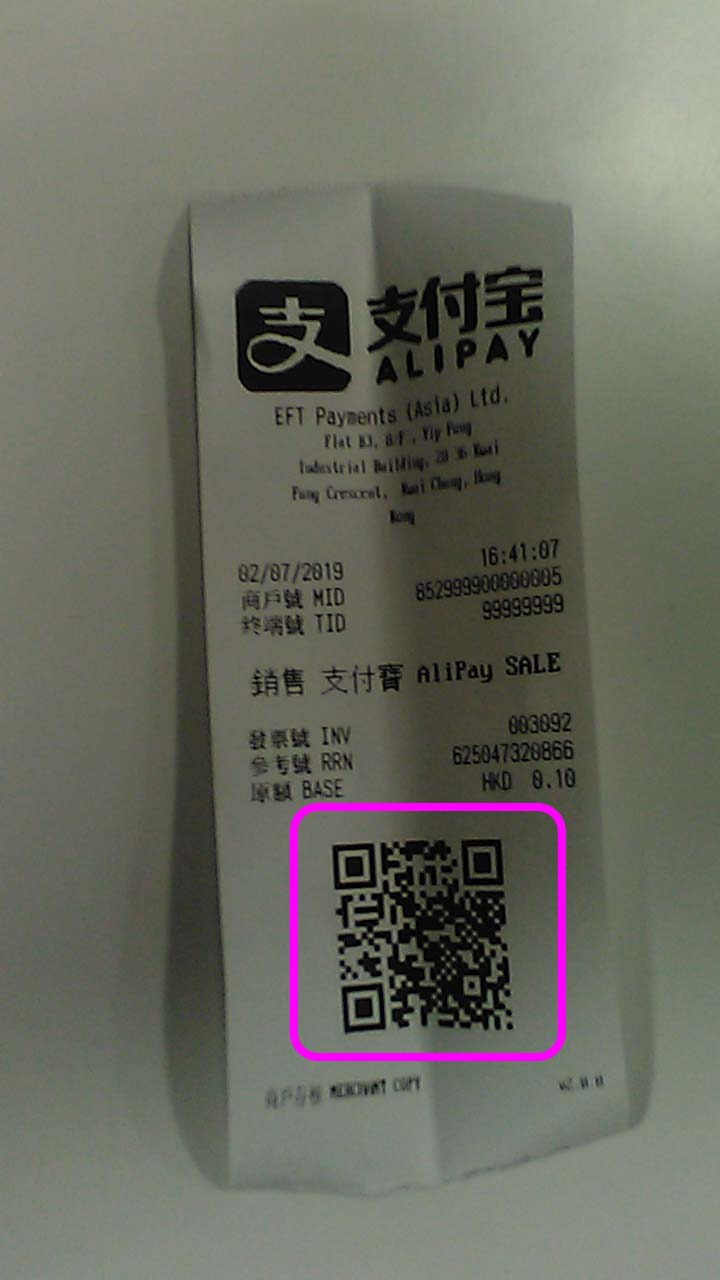
Scan QR code of receipt
- Step 6 -
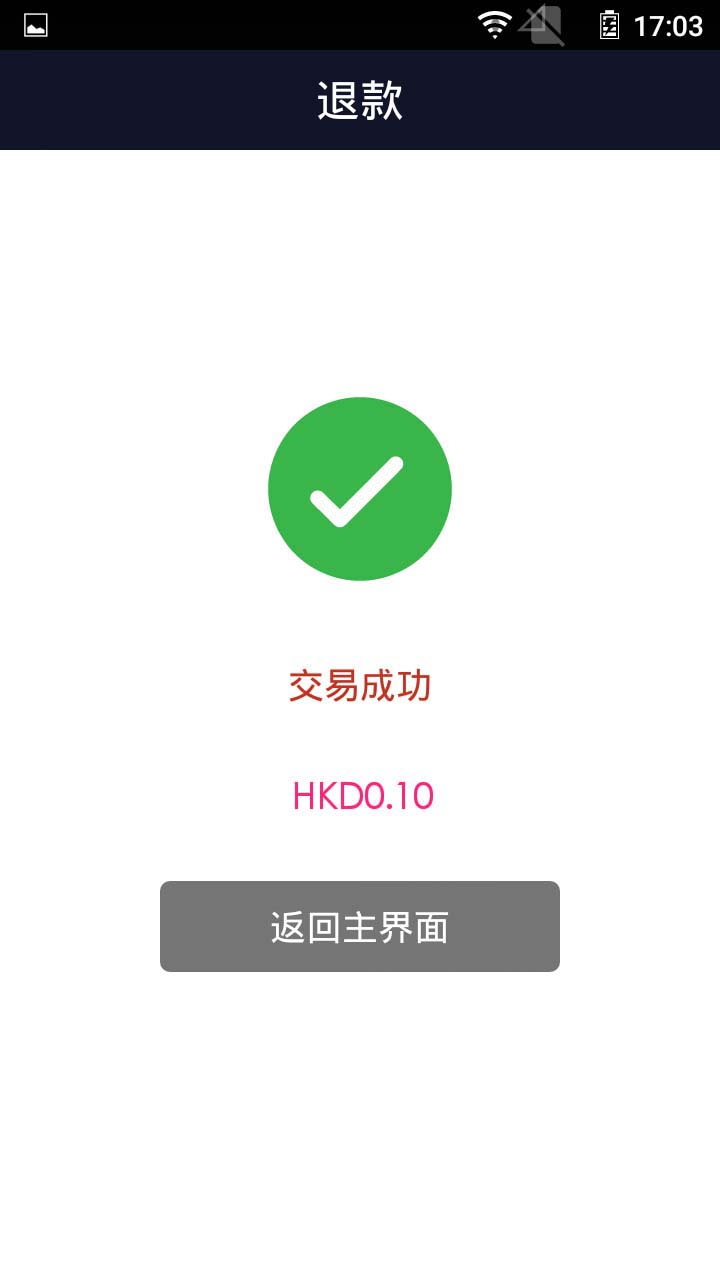
Transaction is completed, terminal prints out receipt
- Step 1 -
Press [Refund] on menu
- Step 2 -
Enter operator password, and press [Confirm]
- Step 3 -
Enter amount, and select [scan QR Code] button
- Step 4 -
Select host for refund
- Step 5 -
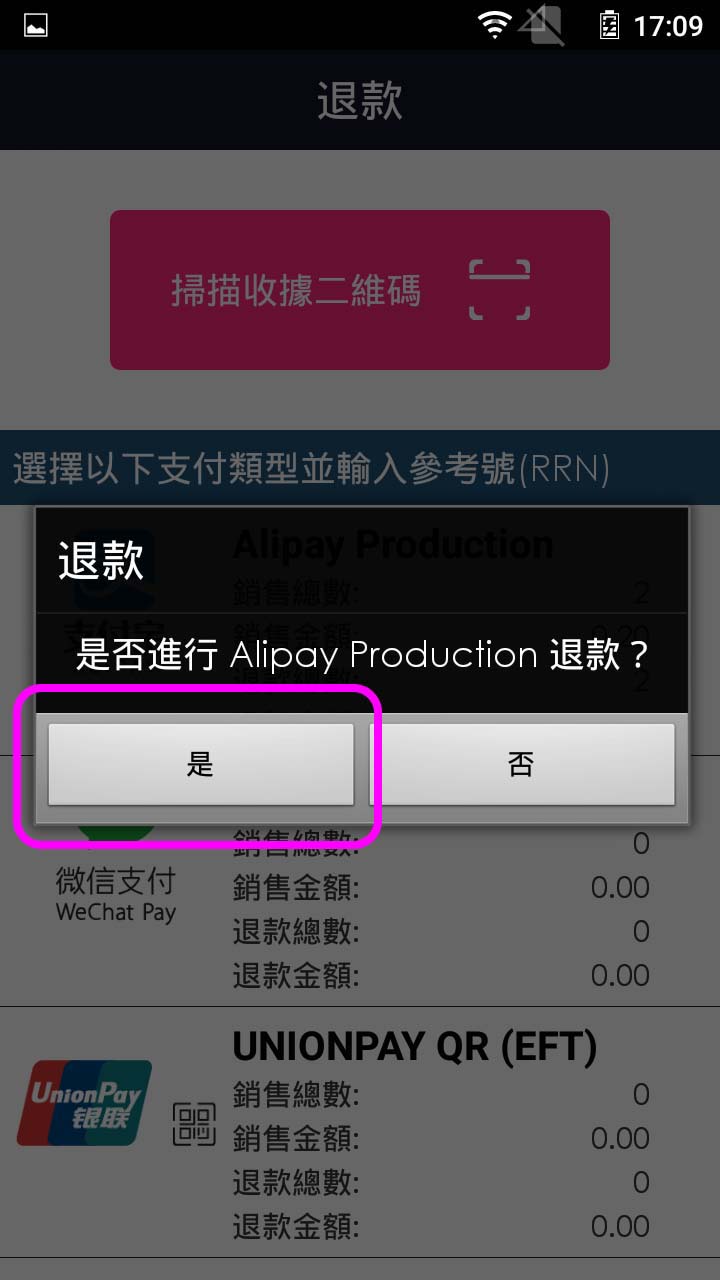
Press [Yes] to confirm refund host
- Step 6 -
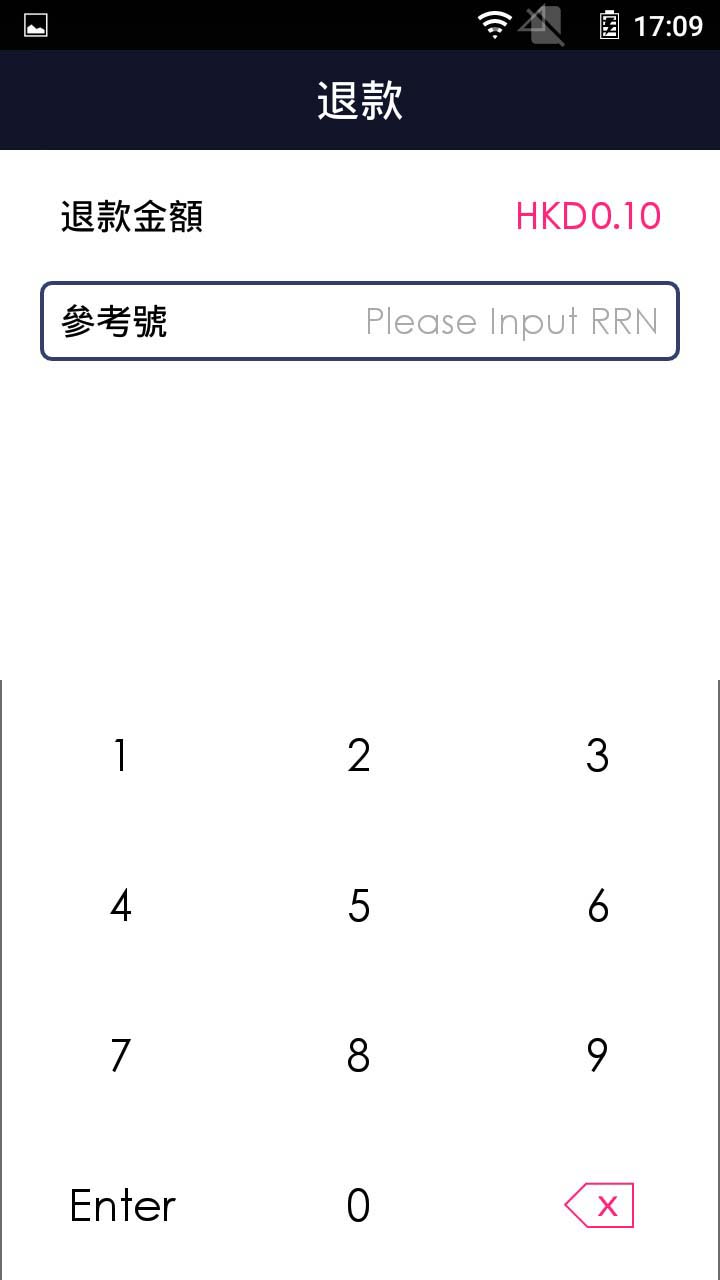
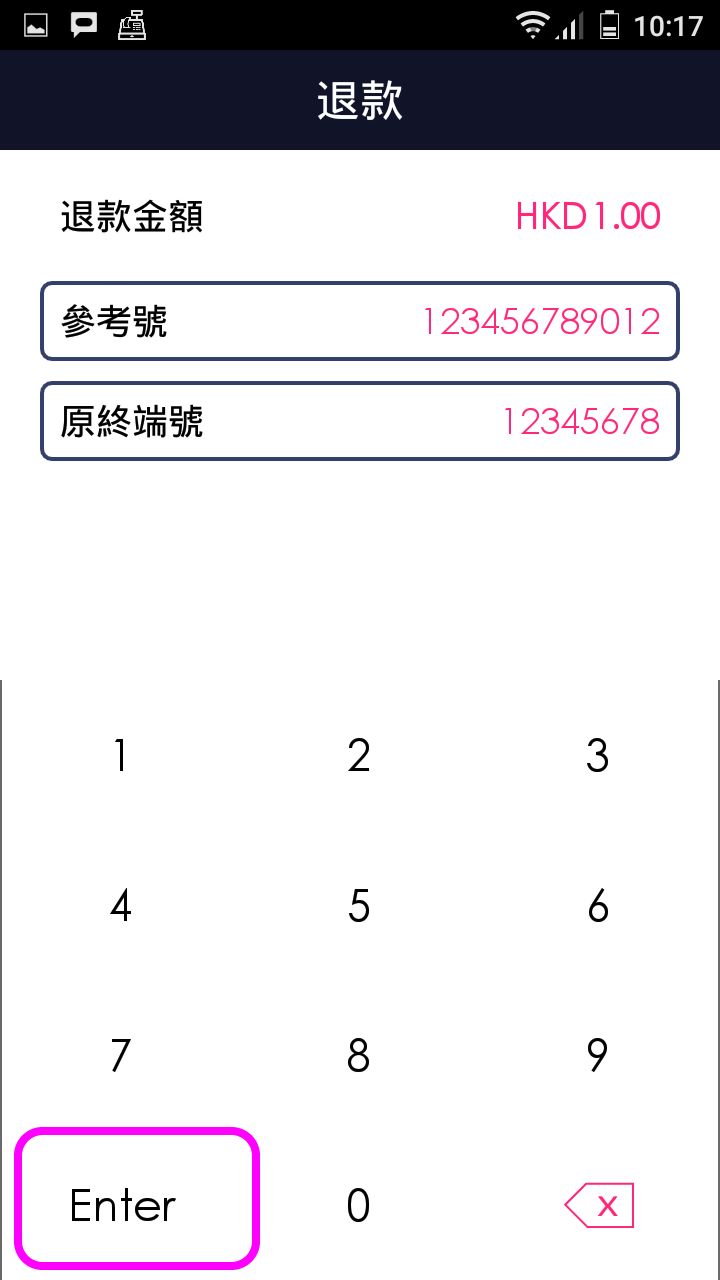
Enter 12 digits reference number from sales receipt or transaction details, and press [Confirm]
- Step 7 -
Enter 8 digit original Terminal ID, and press [Confirm] (If necessary)
- Step 8 -
Transaction is completed, and terminal prints out receipt
- Step 1 -
Press [Refund] on menu
- Step 2 -
Enter operator password, and press [Confirm]
- Step 3 -
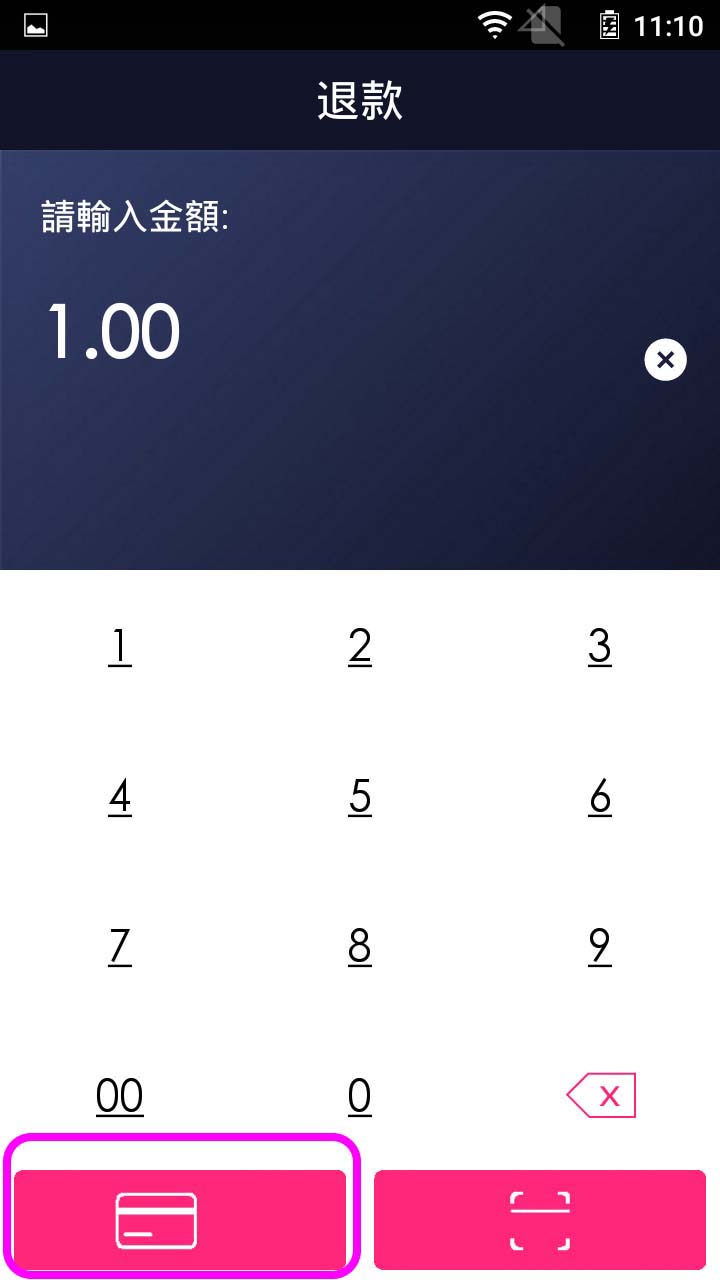
Enter amount, and select [credit card] button
- Step 4 -
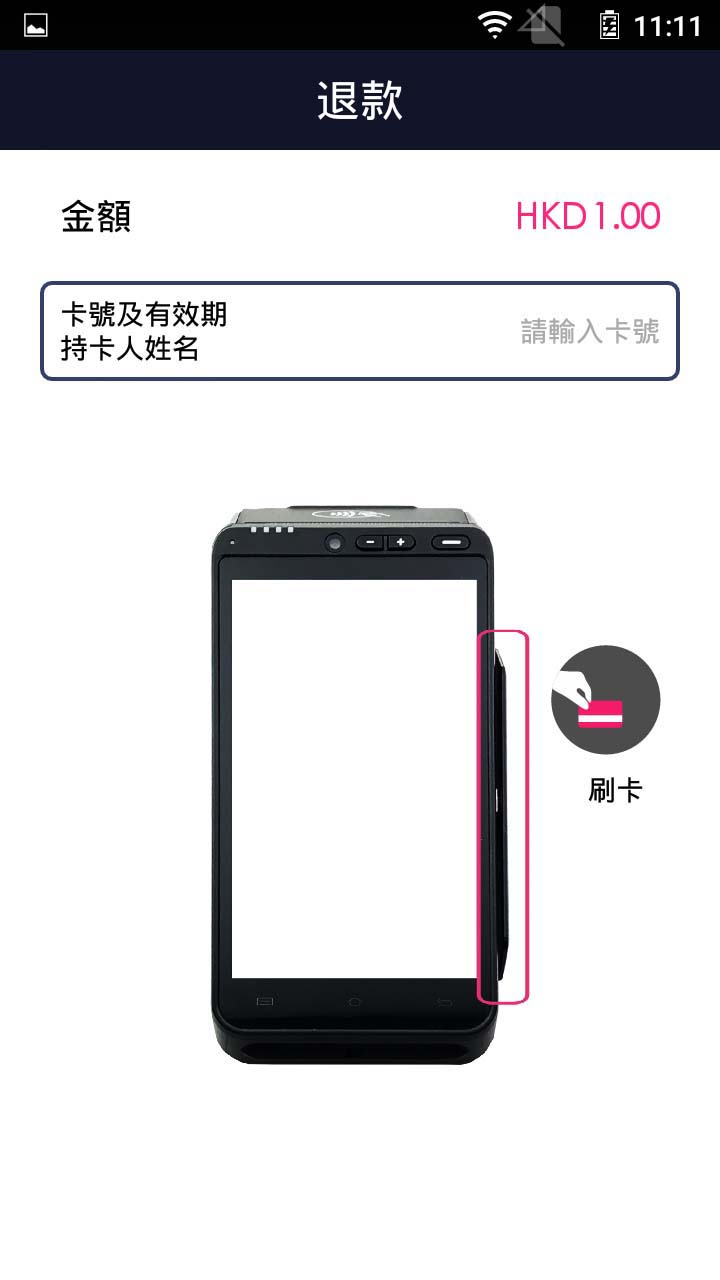
swipe card / enter the card number & expiry date, and press [Continue]
- Step 5 -
Transaction is completed, and terminal prints out receipt
Unconfirmed TXN Query
- Step 1 -
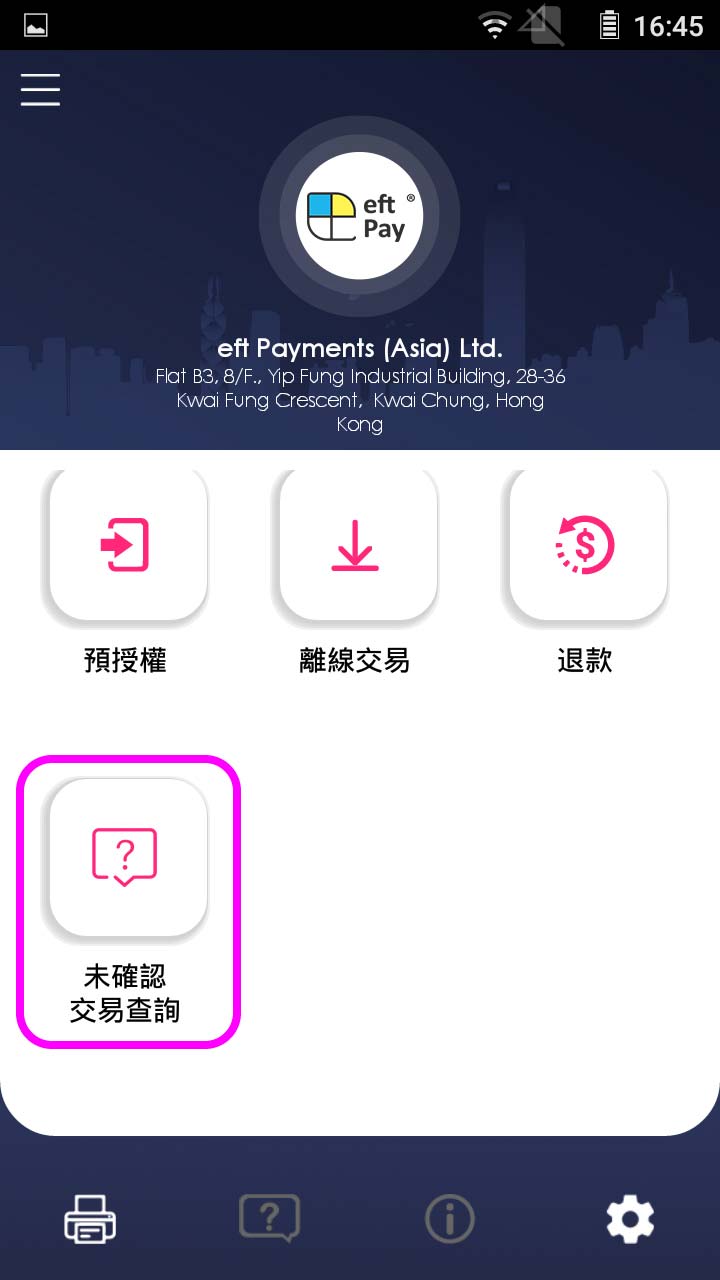
Press [Unconfirmed TXN Query] on menu
- Step 2 -
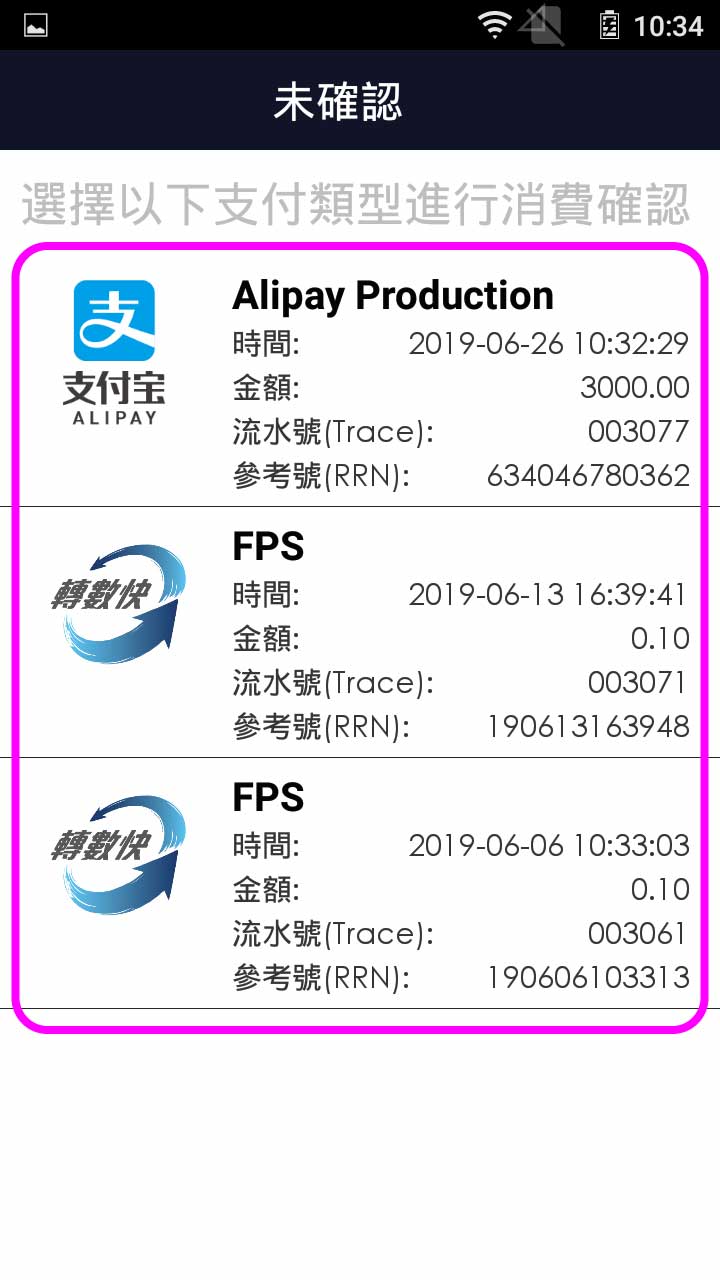
Select the record of [Unconfirmed TXN Query]
- Step 3 -
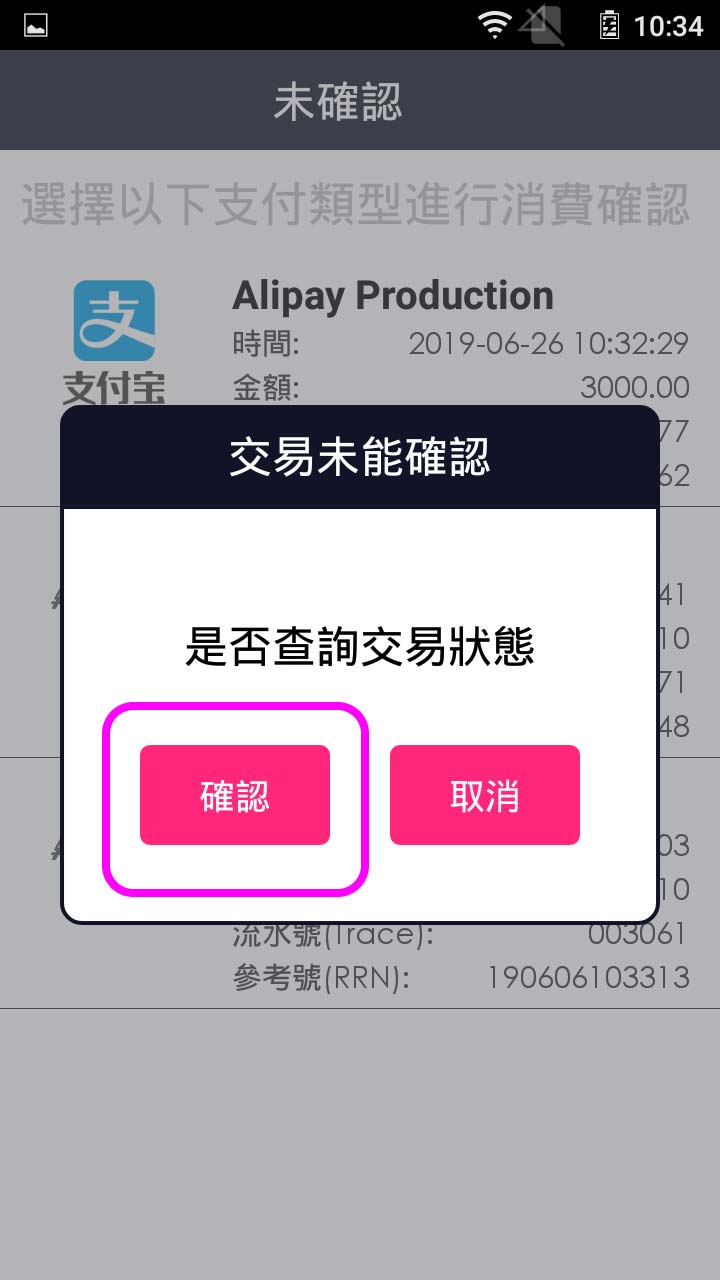
Press [Confirm] in the dialogue box
- Step 4 -
Transaction is completed, and terminal prints out receipt
Reconciliation (Print transaction detail)
Reconciliation (Print transaction total)
- Step 1 -
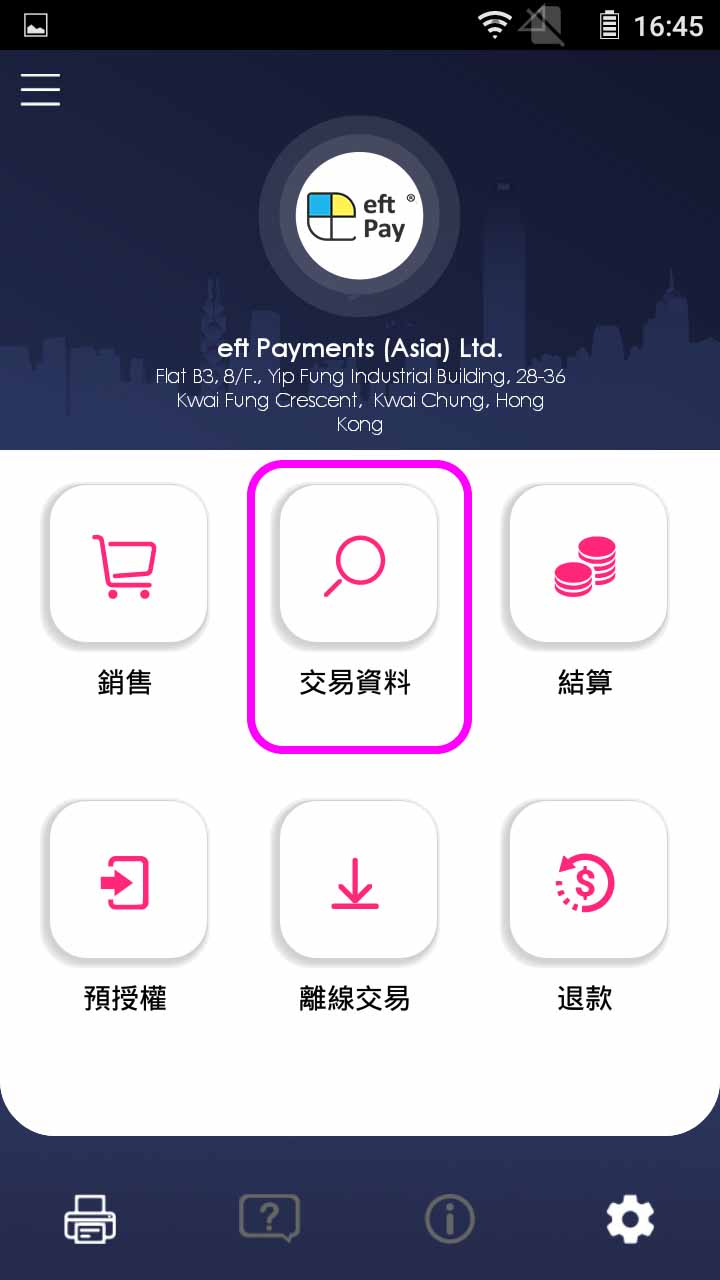
Press [Review] on menu
- Step 2 -
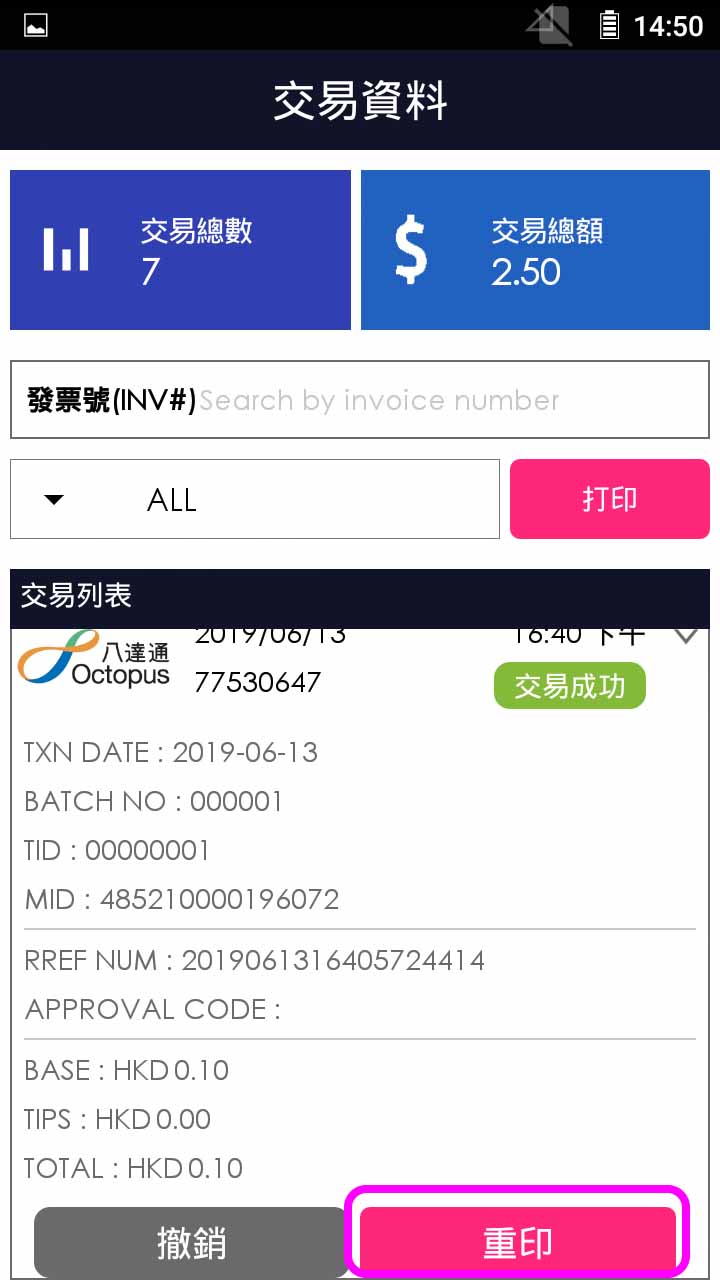
Terminal prints out receipt
- Step 3 -
Terminal prints out receipt
- Step 1 -
Press [Review] on menu
- Step 2 -
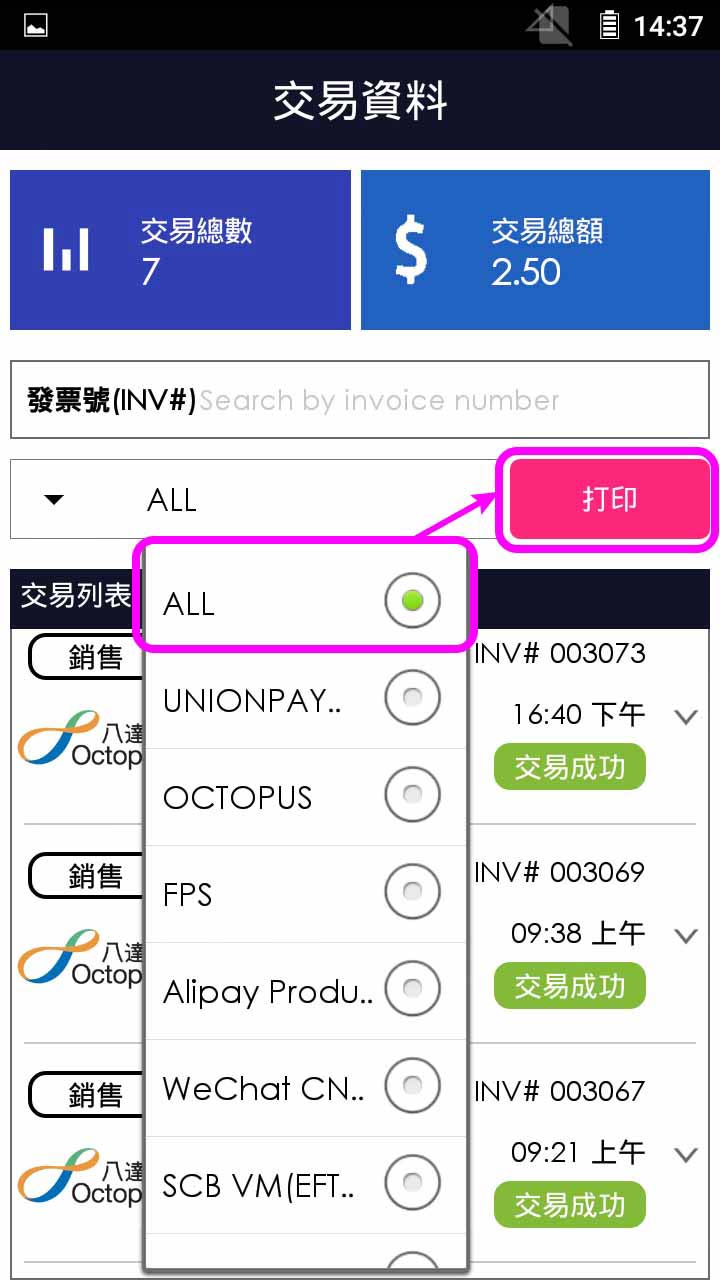
Select [All] and press [Print]
- Step 3 -
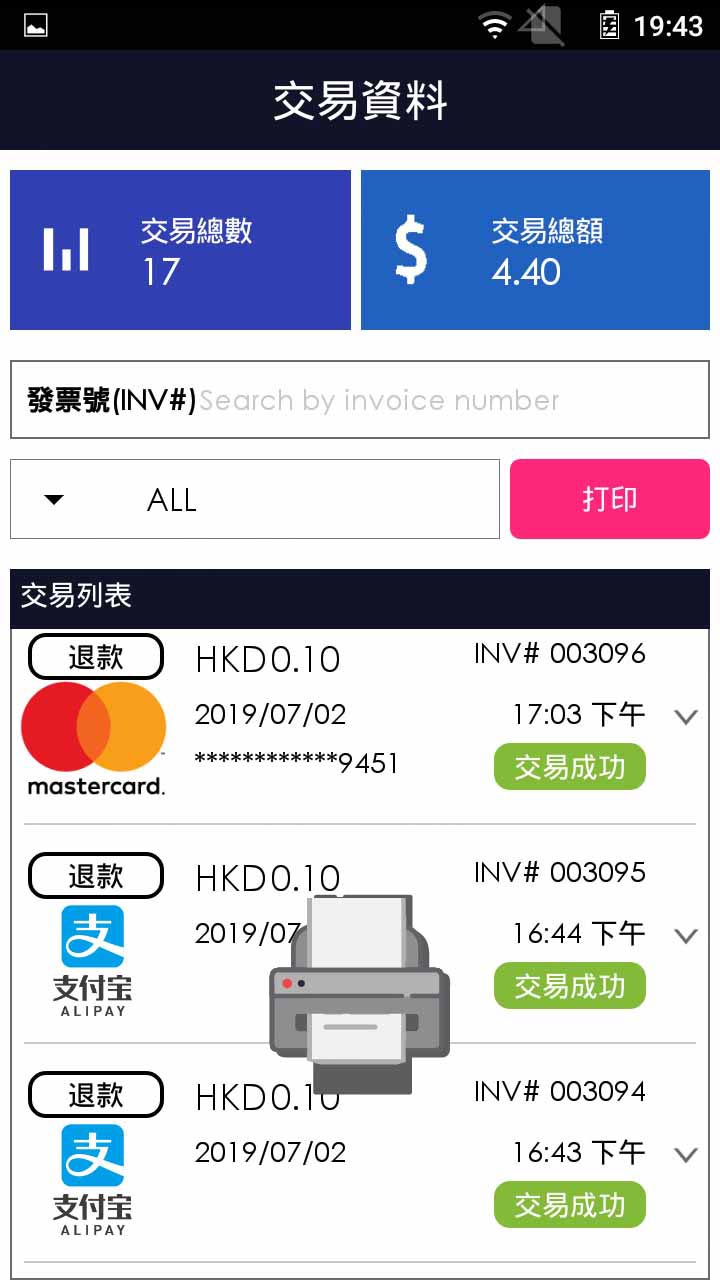
Terminal prints out receipt
Settlement (Settle All)
Settlement (Settle One Host)
- Step 1 -
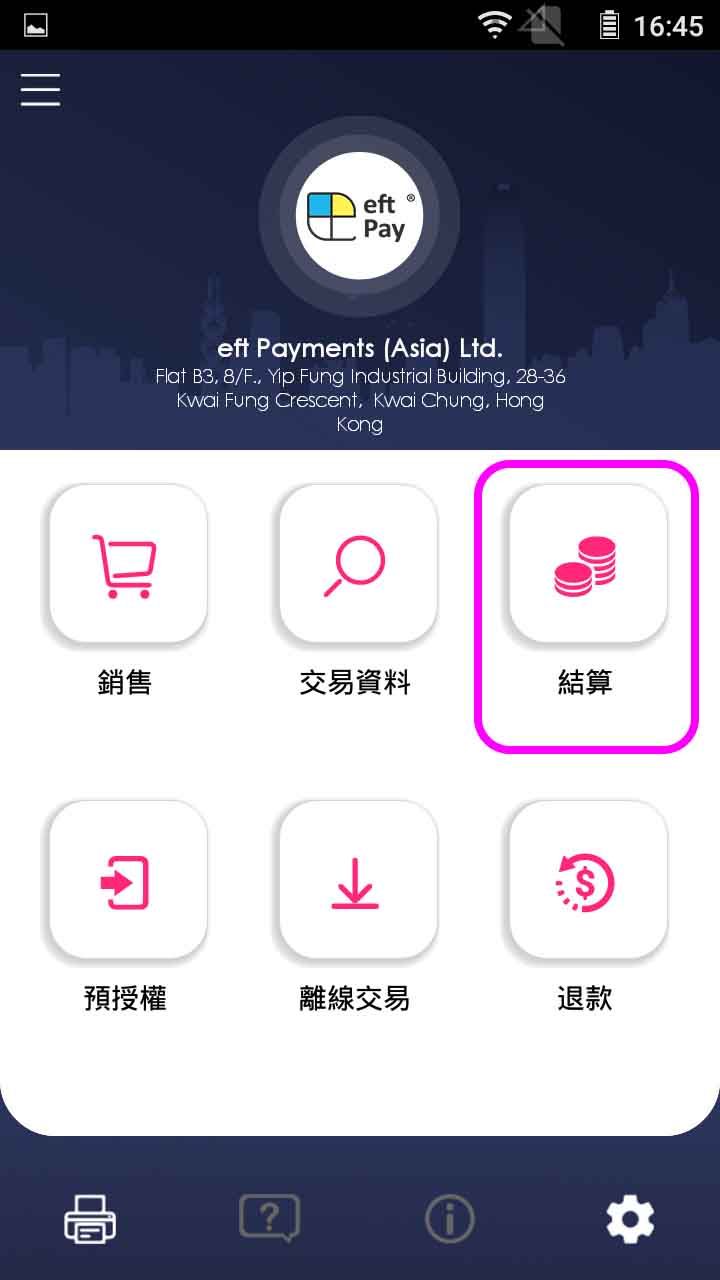
Press [Settlement] on menu
- Step 2 -
Enter operator password, and press [Confirm]
- Step 3 -
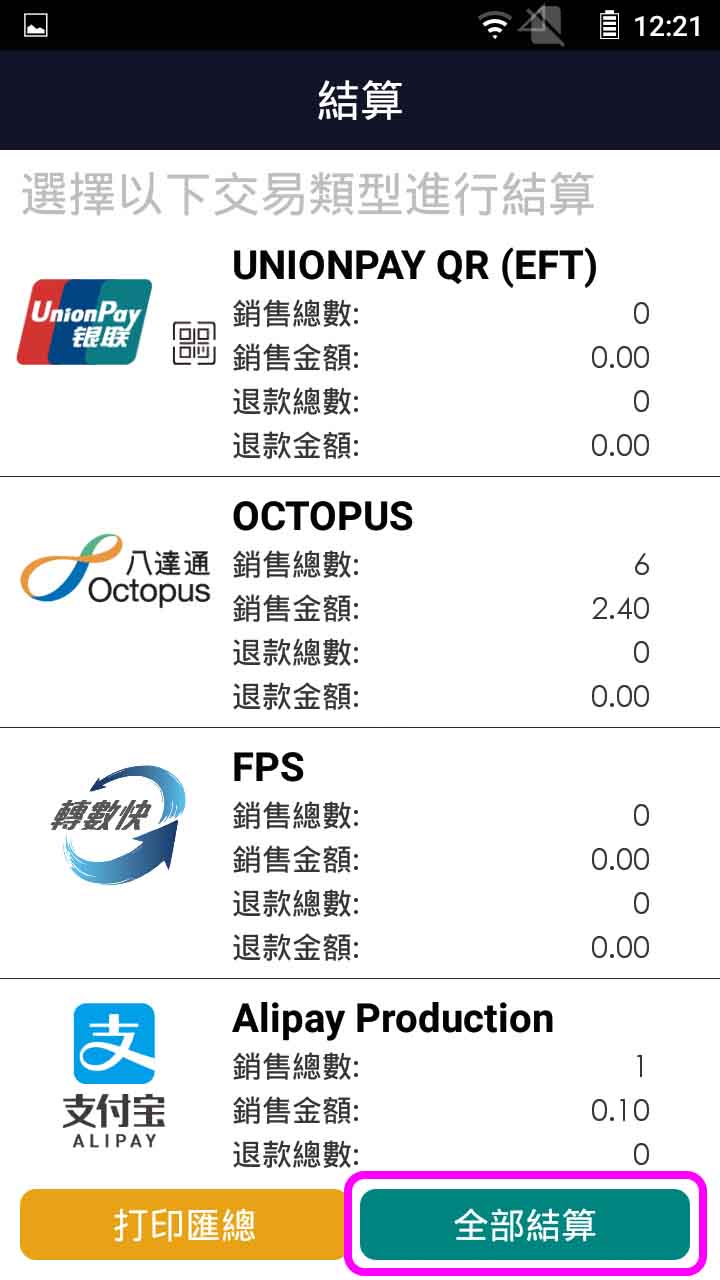
Press [Settle All] button
- Step 4 -
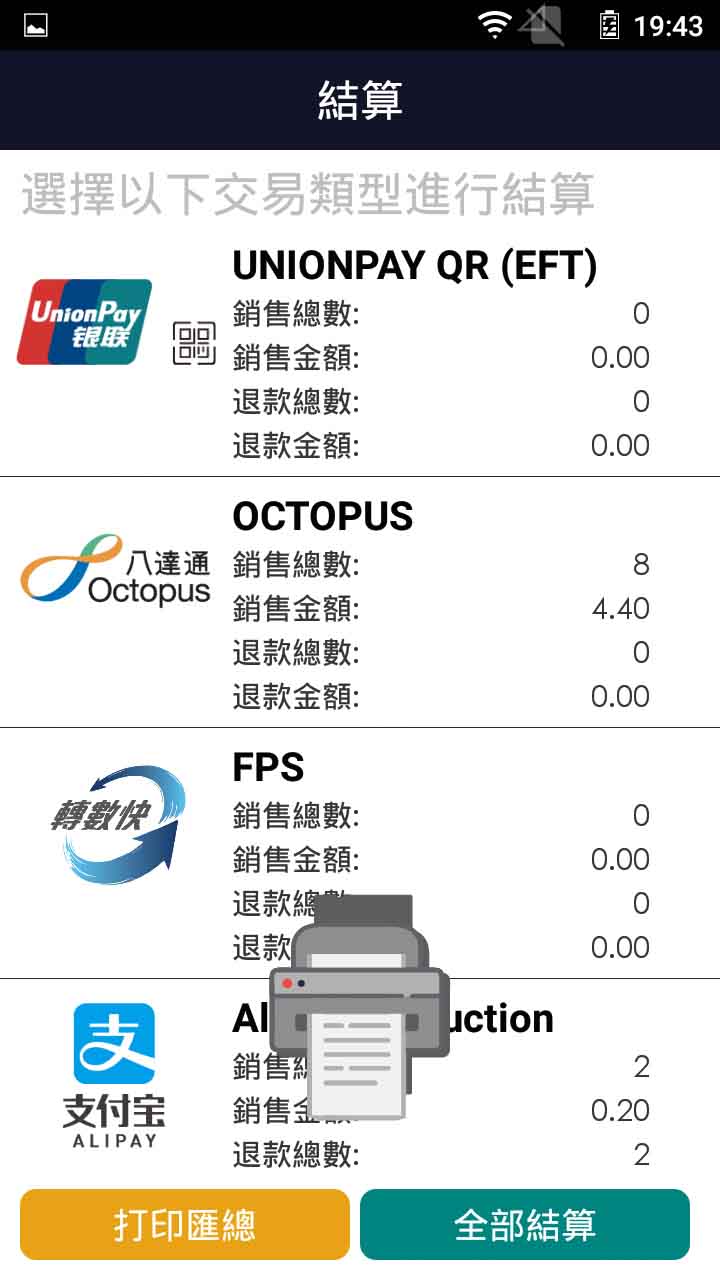
Terminal prints out receipt
- Step 1 -
Press [Settlement] on menu
- Step 2 -
Enter operator password, and press [Confirm]
- Step 3 -
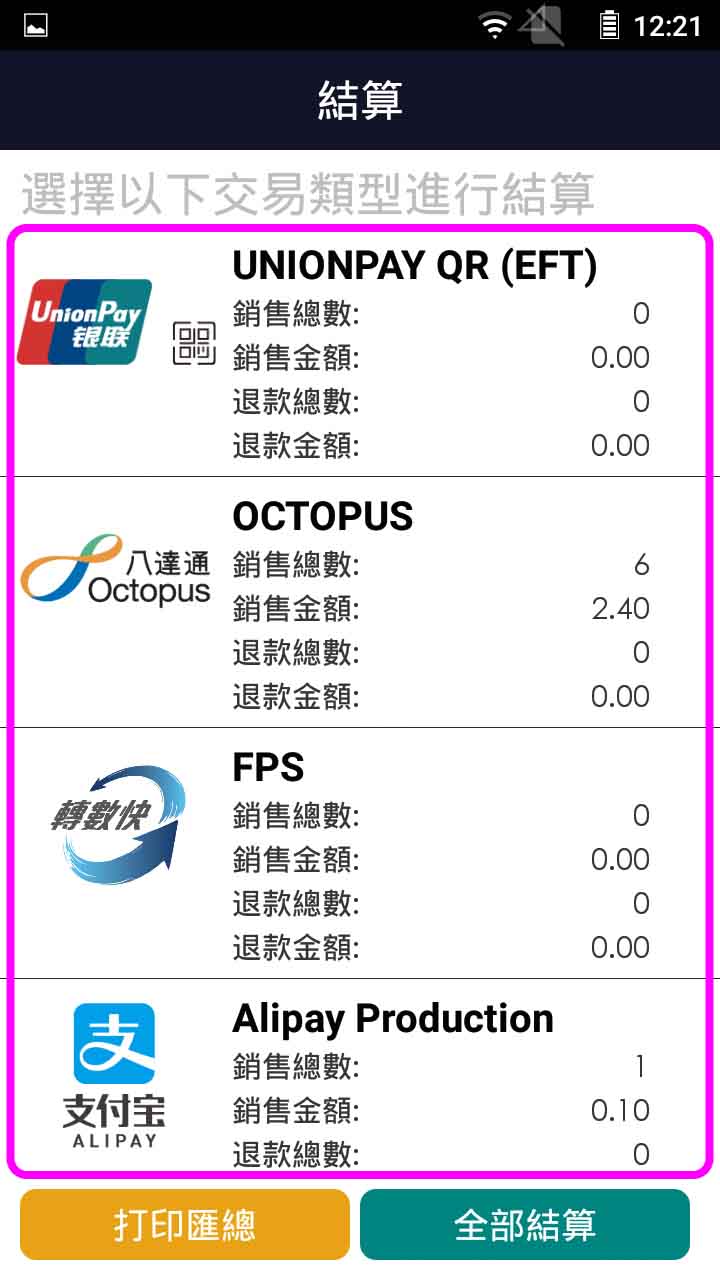
Select and press the payment method
- Step 4 -
Press [Yes] in the dialogue box
- Step 5 -
Terminal prints out receipt
EN

常見問題
功能 :
掃描二維碼
顯示二維碼
八達通
信用卡支付
- 步驟 1 -
於主目錄按 [銷售]
- 步驟 2 -
輸入銷售金額
- 步驟 3 -
按鍵選擇掃碼支付
- 步驟 4 -
掃描客人手機的付款二維碼
- 步驟 5 -
交易完成,終端機打印單據
- 步驟 1 -
於主目錄按 [銷售]
- 步驟 2 -
輸入銷售金額
- 步驟 3 -
按鍵選擇八達通支付
- 步驟 4 -
把八達通卡拍在感應區上
- 步驟 5 -
交易完成,終端機打印單據
- 步驟 1 -
於主目錄按 [銷售]
- 步驟 2 -
輸入銷售金額
- 步驟 3 -
按鍵選擇信用卡支付
- 步驟 4 -
輸入小費金額(如有)
- 步驟 5 -
插卡/拍卡/刷卡/拍電話
- 步驟 6 -
按[繼續]處理交易 (如需要)
- 步驟 7 -
客戶簽名, 然後按[列印存根] (如需要)
- 步驟8 -
交易完成,終端機打印單據
- 步驟 1 -
於主目錄按 [銷售]
- 步驟 2 -
輸入銷售金額
- 步驟 3 -
按鍵顯示收款二維碼
- 步驟 4 -
客人手機掃描二維碼及確定付款
- 步驟 5 -
交易完成,終端機打印單據
撤銷
- 步驟 1 -
於主目錄按 [交易資料]
- 步驟 2 -
於搜索框內輸入發票號碼
- 步驟 3 -
選擇交易記錄,按 [撤銷] 按鈕
- 步驟 4 -
輸入操作員密碼,按 [確認]
- 步驟 5 -
確認撤銷交易,按 [確認]
- 步驟 6 -
交易完成,終端機打印單據
掃描二維碼
手動輸入 -
二維碼交易
手動輸入 -
信用咭交易
- 步驟 1 -
於主目錄按 [退款]
- 步驟 2 -
輸入操作員密碼, 按[確認]
- 步驟 3 -
輸入金額, 並選擇[掃碼]按鍵
- 步驟 4 -
選擇[掃描收據二維碼]
- 步驟 5 -
掃描收據上的二維碼
- 步驟 6 -
交易完成, 終端機打印單據
- 步驟 1 -
於主目錄按 [退款]
- 步驟 2 -
輸入操作員密碼, 按[確認]
- 步驟 3 -
輸入金額, 並選擇[掃碼]按鍵
- 步驟 4 -
選擇退款的主機
- 步驟 5 -
按[是]確認退款主機
- 步驟 6 -
輸入12位數的參考號碼(在銷售收據或交易記錄),然後按[確認]
- 步驟 7 -
輸入8位數的原始終端機號碼,按[確認] (如需要)
- 步驟 8 -
交易完成,終端機打印單據
- 步驟 1 -
於主目錄按 [退款]
- 步驟 2 -
輸入操作員密碼, 按[確認]
- 步驟 3 -
輸入金額, 並選擇[信用卡]按鍵
- 步驟 4 -
刷卡/輸入卡號及到期日,然後按[繼續]
- 步驟 5 -
交易完成,終端機打印單據
未確定交易查詢
- 步驟 1 -
於主目錄上的 [未確認交易查詢]
- 步驟 2 -
選擇 [未確認交易查詢] 記錄
- 步驟 3 -
在對話框中按 [確認]
- 步驟 4 -
交易完成,終端機打印單據
對賬 (列印交易信息)
對賬 (列印所有交易)
- 步驟 1 -
於主目錄按 [交易資料]
- 步驟 2 -
在交易列表中選擇交易記錄,並按 [重印]
- 步驟 3 -
終端機打印單據
- 步驟 1 -
於主目錄按 [交易資料]
- 步驟 2 -
選擇[所有],並按 [打印]
- 步驟 3 -
終端機打印單據
結算 (全部結算)
結算 (單一交易類型)
- 步驟 1 -
於主目錄按 [結算]
- 步驟 2 -
輸入操作員密碼,按 [確認]
- 步驟 3 -
按 [全部結算]
- 步驟 4 -
終端機打印單據
- 步驟 1 -
於主目錄按 [結算]
- 步驟 2 -
輸入操作員密碼,按 [確認]
- 步驟 3 -
選擇並按下交易類型
- 步驟 4 -
在對話框中按 [是]
- 步驟 5 -
終端機打印單據